

Python Packages
Some Odoo modules need extra Python libraries. The Packages tab installs them into the instance's environment, with no pip commands to run.
The Packages tab is available to the instance owner.
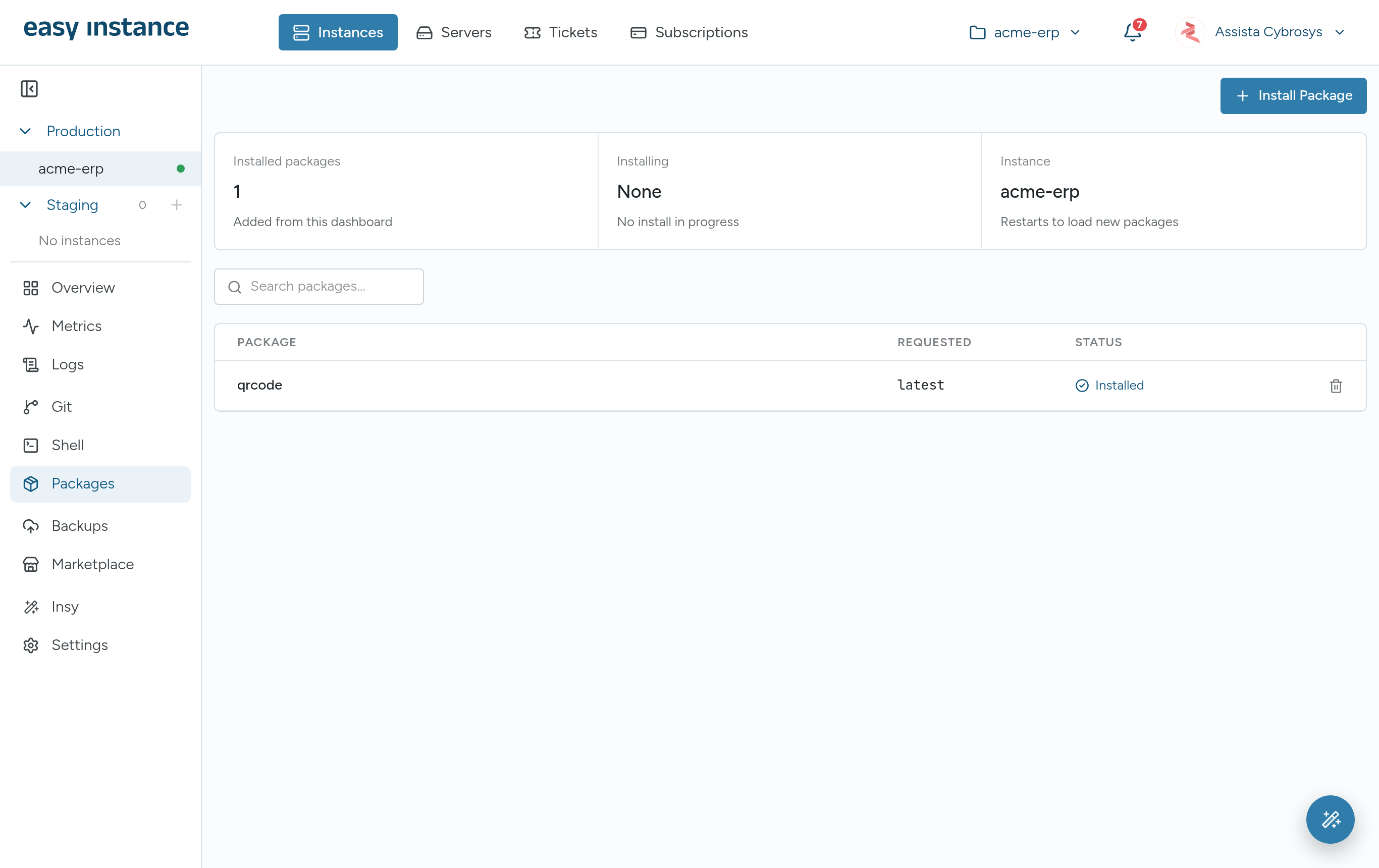
The cards at the top show the Installed packages added from the dashboard, anything Installing, and the Instance, which restarts to load new packages.
Install a Package
- Open the instance and select Packages.
- Select Install Package.
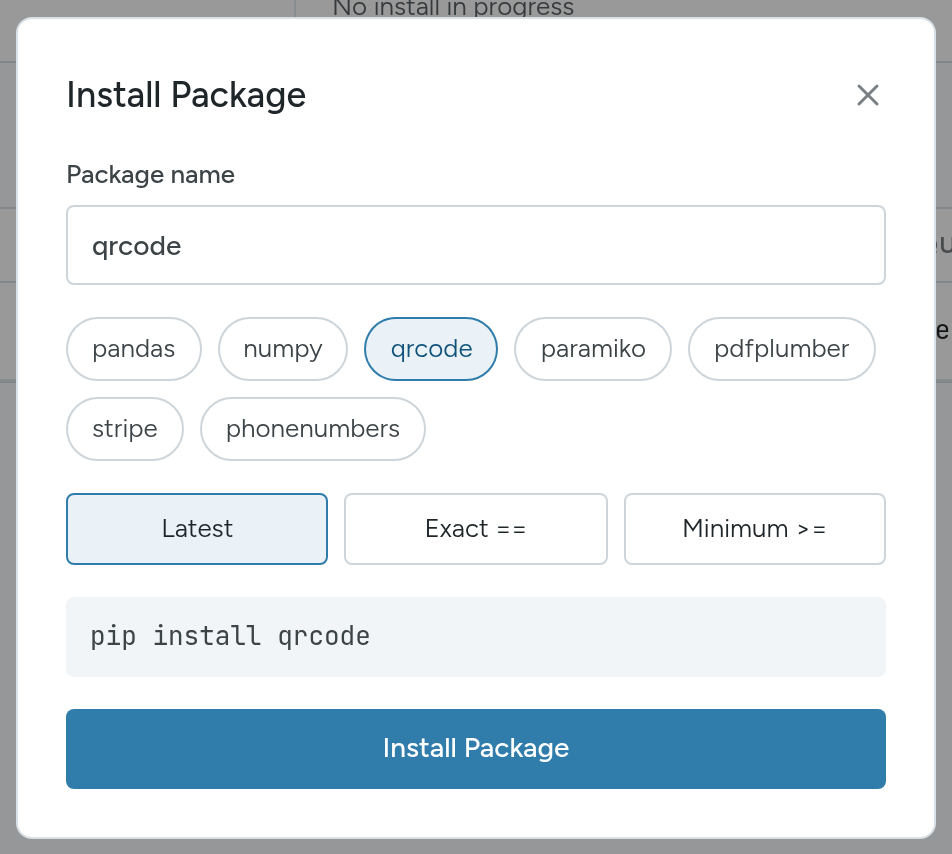
- Enter the Package name, or pick a suggestion such as pandas, numpy, qrcode, paramiko, pdfplumber, stripe or phonenumbers.
- Choose the version:
- Latest: the newest release.
- Exact ==: one exact version.
- Minimum >=: this version or newer.
- Check the
pip installpreview, then select Install Package.
When it finishes, you see a message such as qrcode installed., and the package is listed with its requested version and the status Installed.
Remove a Package
Select the trash button on the package's row and confirm.
WARNING
Removing a package uninstalls it from the instance's environment. Modules that import it will stop loading.