

Instances List
Instances in the top bar lists every Odoo instance you own or that has been shared with you.
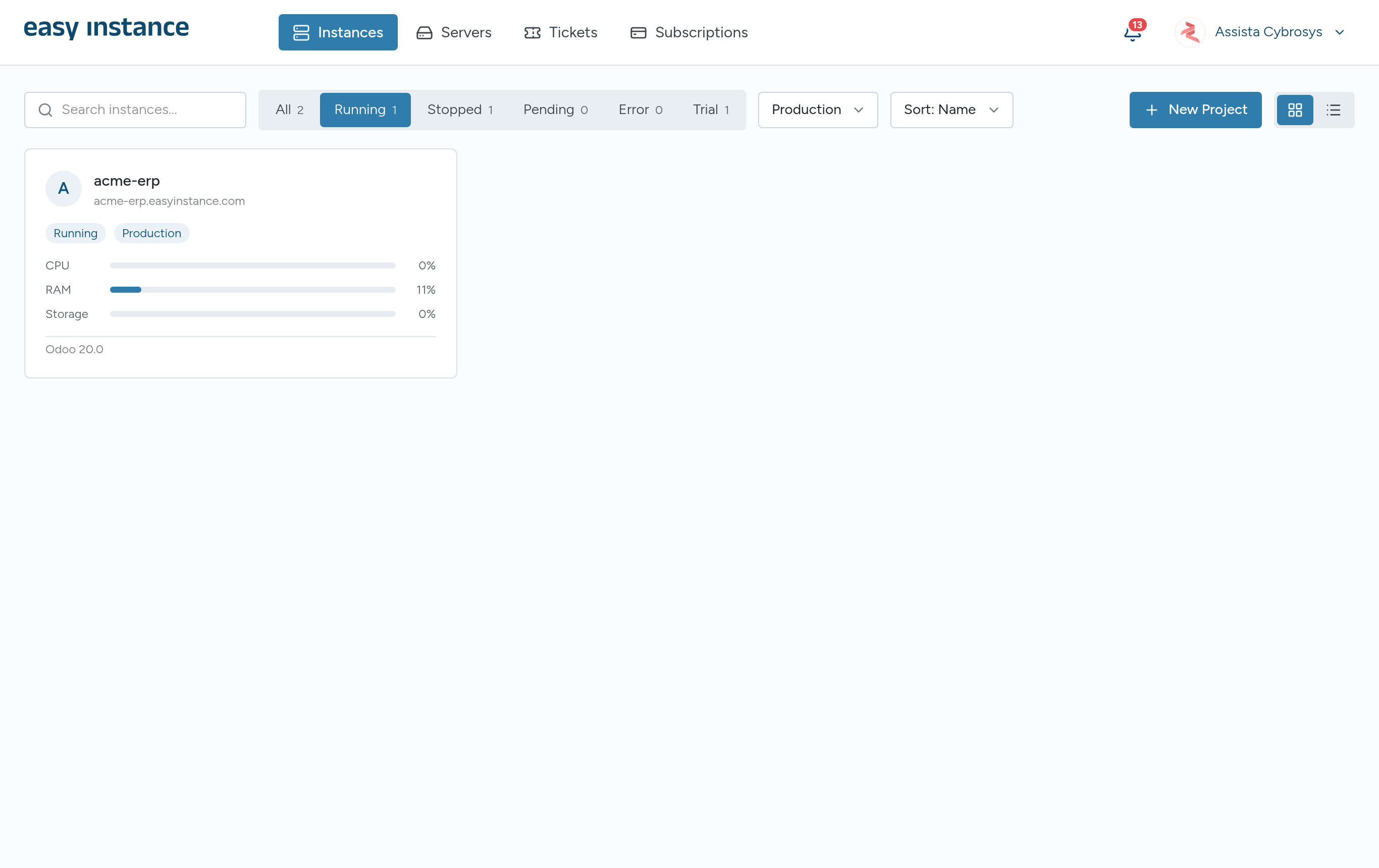
Find an Instance
- Search instances... filters by name.
- The status tabs show a count for each state: All, Running, Stopped, Pending, Error and Trial. The list opens on Running.
- The stage menu shows Production instances by default. Switch it to Staging or All stages to include staging copies.
- Sort by Name, CPU usage or Storage used.
Cards and List View
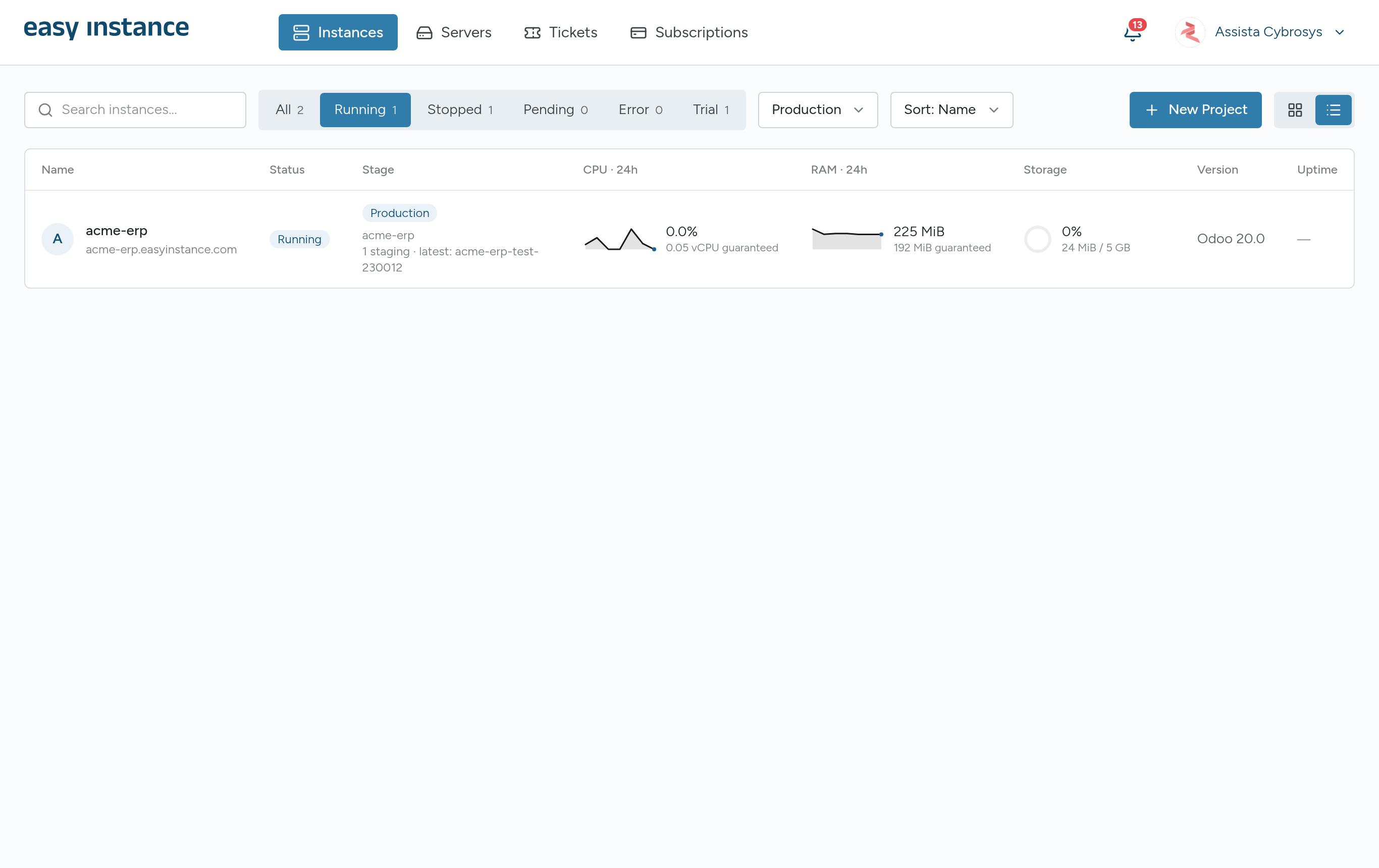
Use the two buttons next to New Project to switch views. Your choice is remembered in this browser.
- Cards show the name and address, status and stage badges, CPU, RAM and storage bars, and the Odoo version.
- List shows one row per instance, with the columns Name, Status, Stage, CPU · 24h, RAM · 24h, Storage, Version and Uptime. CPU and RAM include a 24-hour chart and the resources guaranteed to the instance.
Dedicated server customers
If your plan includes a dedicated server, New Project shows New instances on your dedicated server instead of the wizard. The Easy Instance team sets up new instances for you: select Contact us and say which name and Odoo version you need.
Select an instance to open it. See Instance Overview and Actions.
Banners Above the List
- Waiting list: if an instance is waiting for a free slot, a banner shows its place in line. Easy Instance creates it and emails you when a slot frees. You can Leave the list. If the instance can't be created, the banner says so; select Dismiss and try again, or open a ticket.
- Migration: while a migration runs, a banner shows its progress. Select View to follow it.