

Marketplace
The Marketplace tab lets you add ready-made Odoo modules to an instance. Adding a module is a two-step process: Download puts the module's files on the instance, then Install installs it in Odoo.
INFO
The instance must be running to download or install modules. On a production instance, try new modules on a staging copy and take a backup first.
Browse the Catalog
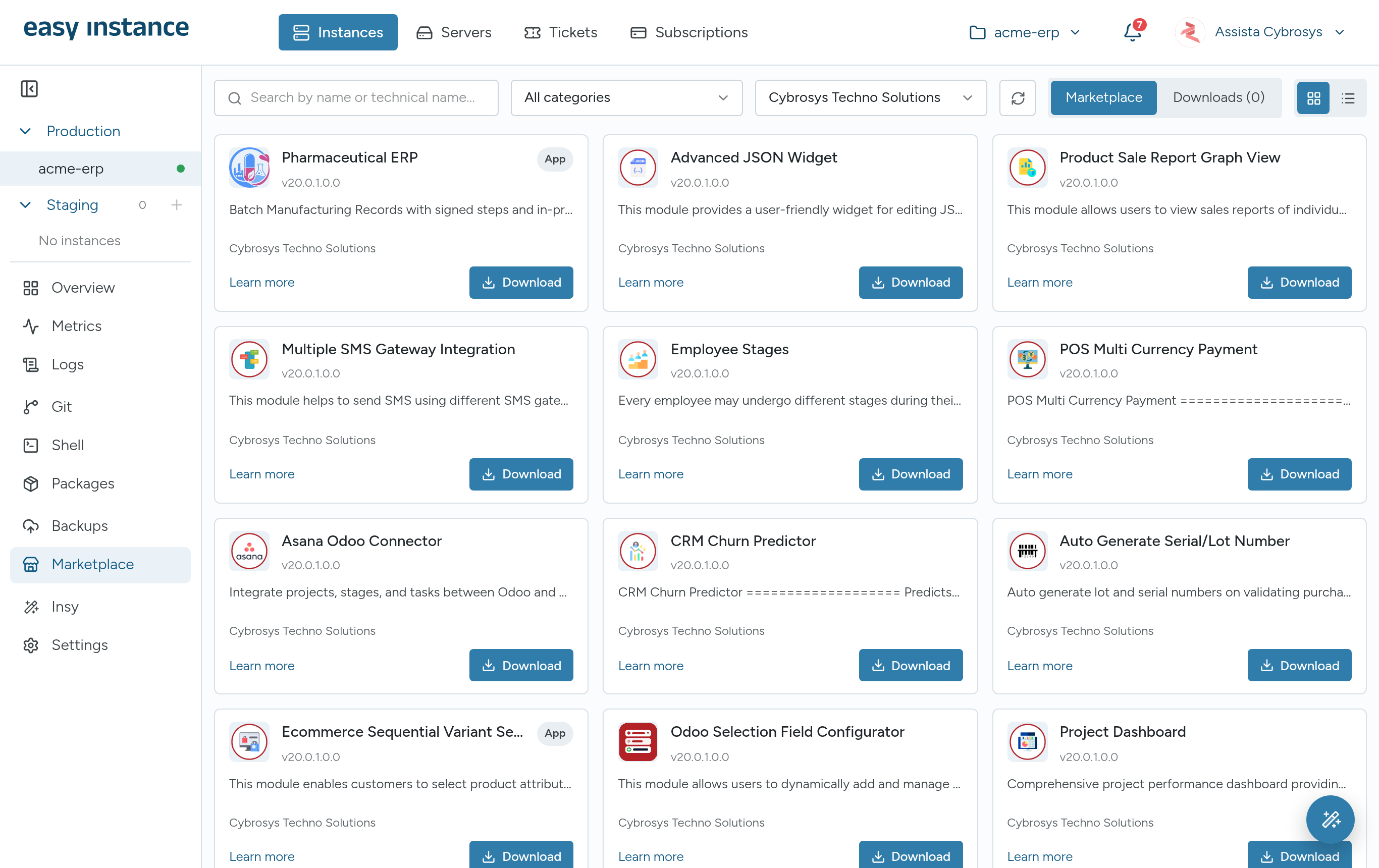
- Open the instance and select Marketplace.
- Find a module:
- Search by name or technical name.
- Filter by category, such as Accounting, Sales, Inventory or Human Resources.
- Filter by publisher: Cybrosys Techno Solutions or OCA.
- Switch between cards and list view with the buttons at the top right.
- Select Learn more for a module's details: version, publisher, category, license, repository and branch.
Download a Module
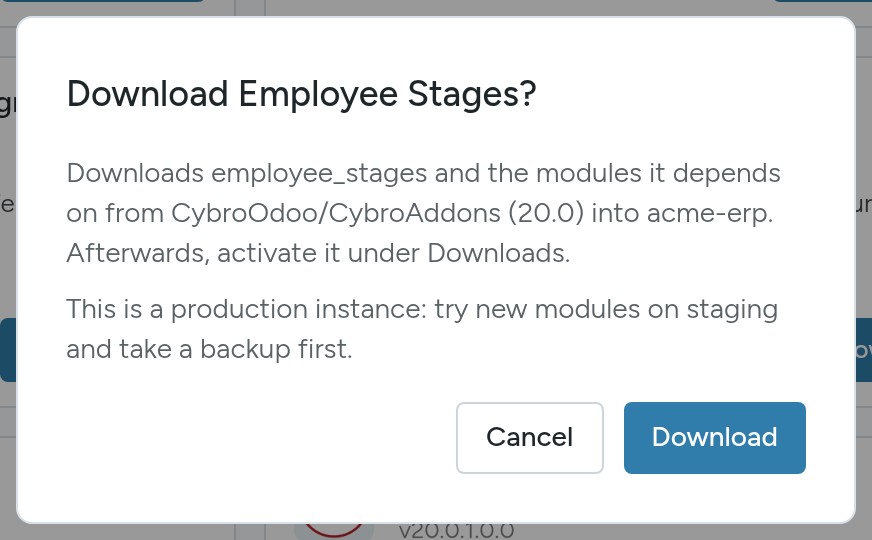
Select Download on the module and confirm. Easy Instance fetches it together with the modules it depends on, from the module's repository. The button shows Downloading... until it is done.
To download several at once, switch to list view, tick the modules and select Download selected.
Install a Module
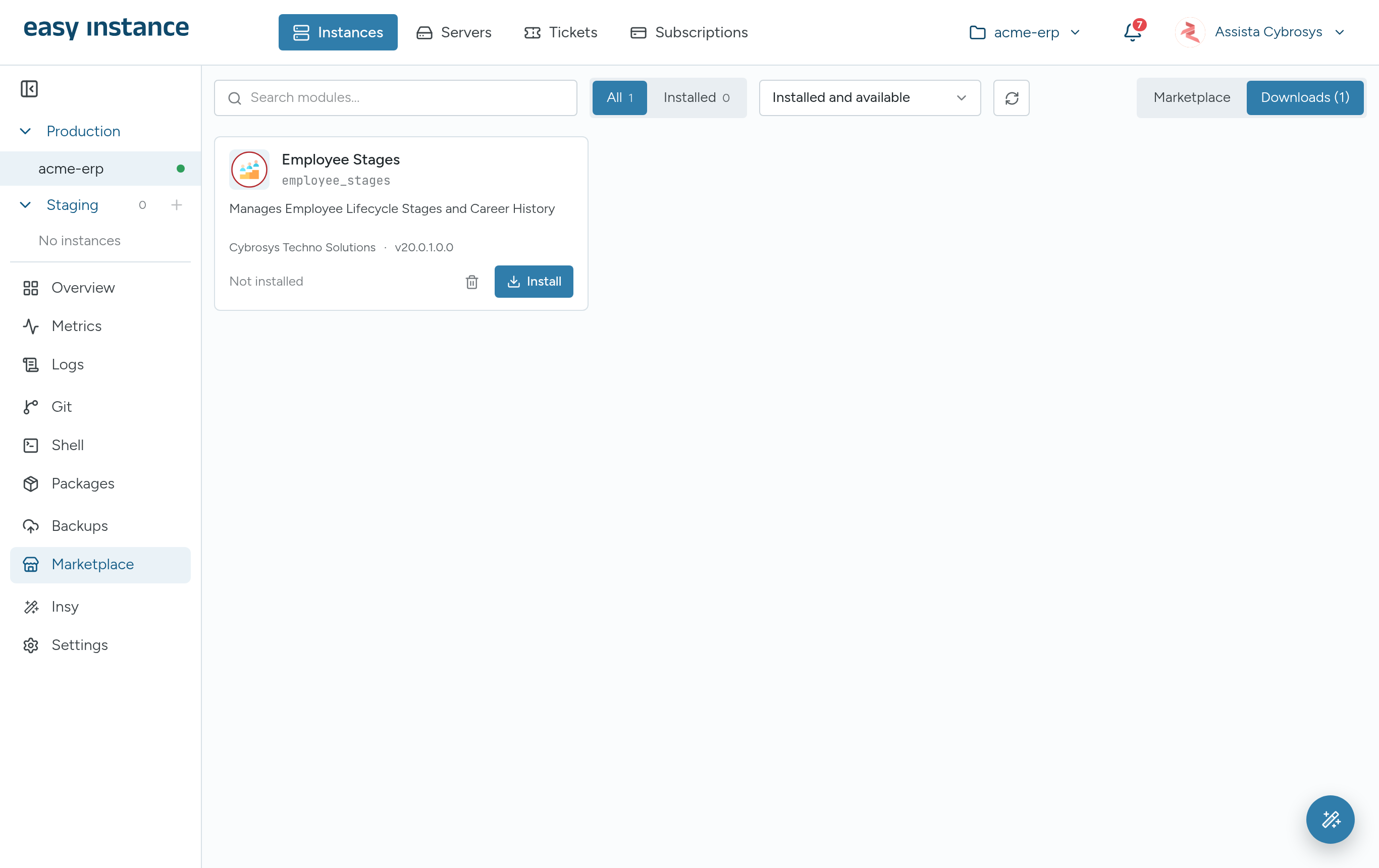
Select Downloads at the top right. The number shows how many modules you have downloaded.
Find the module and select Install.
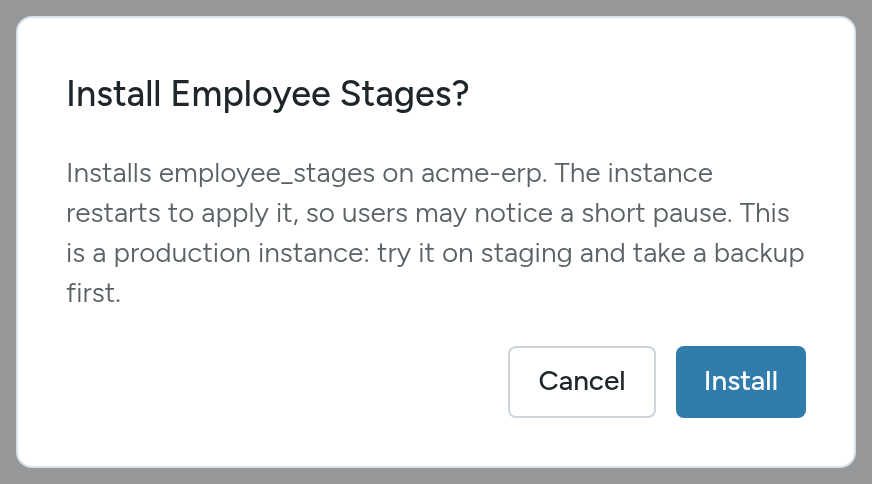
Confirm. Installing restarts the instance, so users may notice a short pause.
Manage Downloaded Modules
In Downloads:
- Use All and Installed, and the status filter (Installed and available, Installed only, Not installed), to find a module.
- Upgrade an installed module to the downloaded version.
- Uninstall removes it from Odoo. This also restarts the instance.
- The trash button deletes the module's files from the instance.
Modules that come from your linked GitHub repository are tagged Linked repository. See Git and Custom Modules.
Add a Module from GitHub
If Downloads is empty, Add module lets you fetch a single module from any GitHub repository. Enter the Repository (owner/repository), the Branch and the Module folder, then select Download module.