

Migrate to Odoo
Moving from another business system? Easy Instance can copy your data into a new Odoo 20 instance for you. Your old system is only read, never changed, and the new instance starts as a free trial, like any new instance.
| Your current system | How Easy Instance connects |
|---|---|
| ERPNext | You enter a read-only ERPNext login |
| Zoho ERP | You sign in to Zoho and approve read-only access |
| Sage Accounting | You sign in to Sage and approve read-only access |
Tally is shown as Coming soon.
Start the Migration
- Go to Instances and select New Project.
- Choose Migrate from another system.
The wizard has five steps: Your system, Data, Connect, New instance and Review.
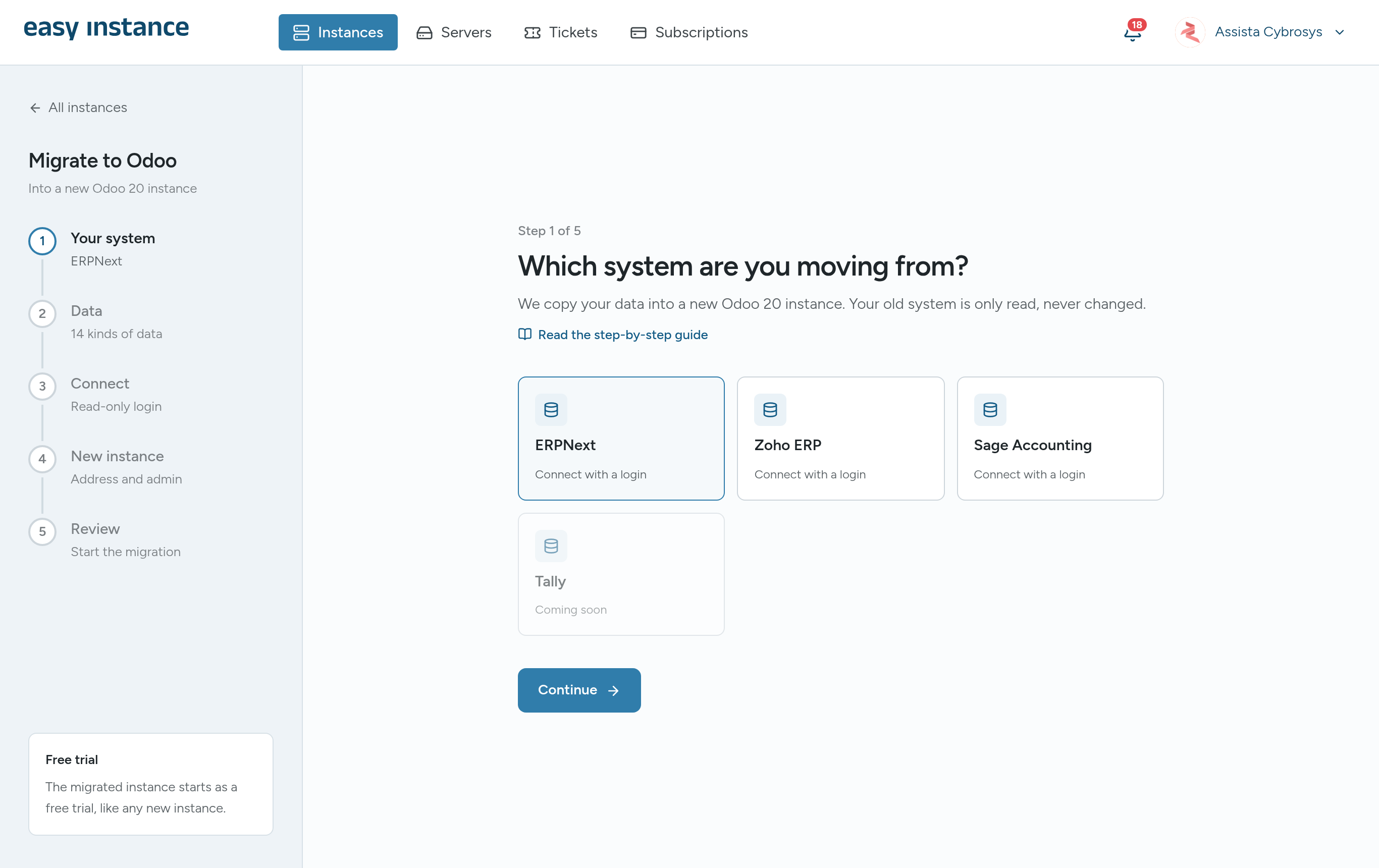
Step 1: Your System
Choose your current system and select Continue.
Step 2: Data
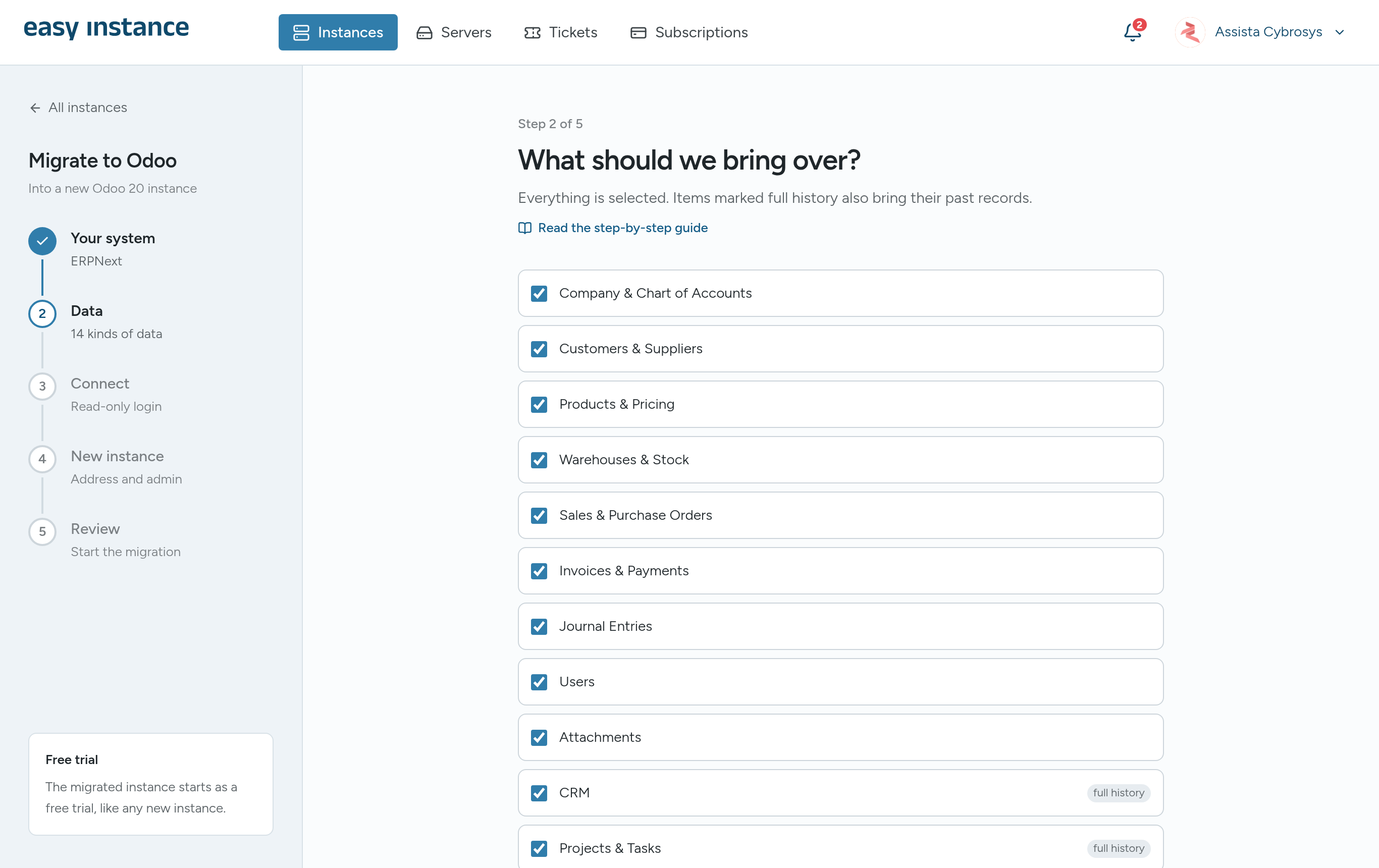
Everything is selected to start with. Clear anything you don't want to bring over, then select Continue.
Items that another item depends on, such as Company & Chart of Accounts, are brought over automatically. Items marked full history also bring their past records.
What you can bring over from ERPNext (14 kinds of data)
- Company & Chart of Accounts
- Customers & Suppliers
- Products & Pricing
- Warehouses & Stock
- Sales & Purchase Orders
- Invoices & Payments
- Journal Entries
- Users
- Attachments
- With full history: CRM, Projects & Tasks, Employees, Bills of Materials, Point of Sale
What you can bring over from Zoho ERP (5 kinds of data)
- Company & Chart of Accounts
- Business Locations & Warehouses
- Taxes
- Customers & Vendors
- Products
What you can bring over from Sage Accounting (13 kinds of data)
- Company & Chart of Accounts
- Taxes
- Customers & Suppliers
- Products & Services
- Opening Stock & Reordering Rules
- Opening Balances
- With full history: Sales Invoices & Credit Notes, Purchase Bills & Credit Notes, Customer & Supplier Payments, Bank Transfers, Other Payments & Receipts, Journal Entries, Opening Balances & Other Ledger Postings, Attachments
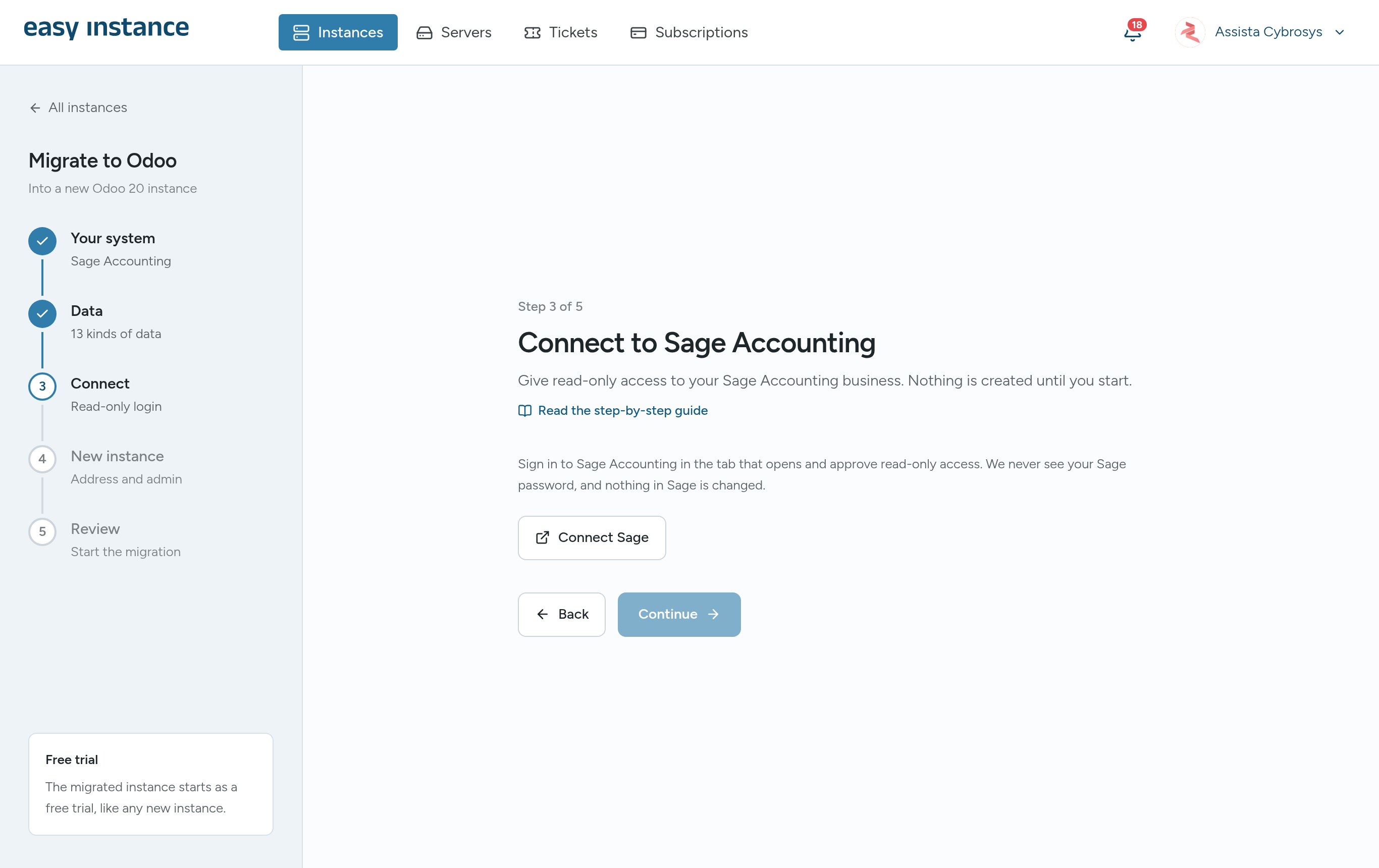
Step 3: Connect
Easy Instance tests the connection before anything is created. How you connect depends on your system.
ERPNext
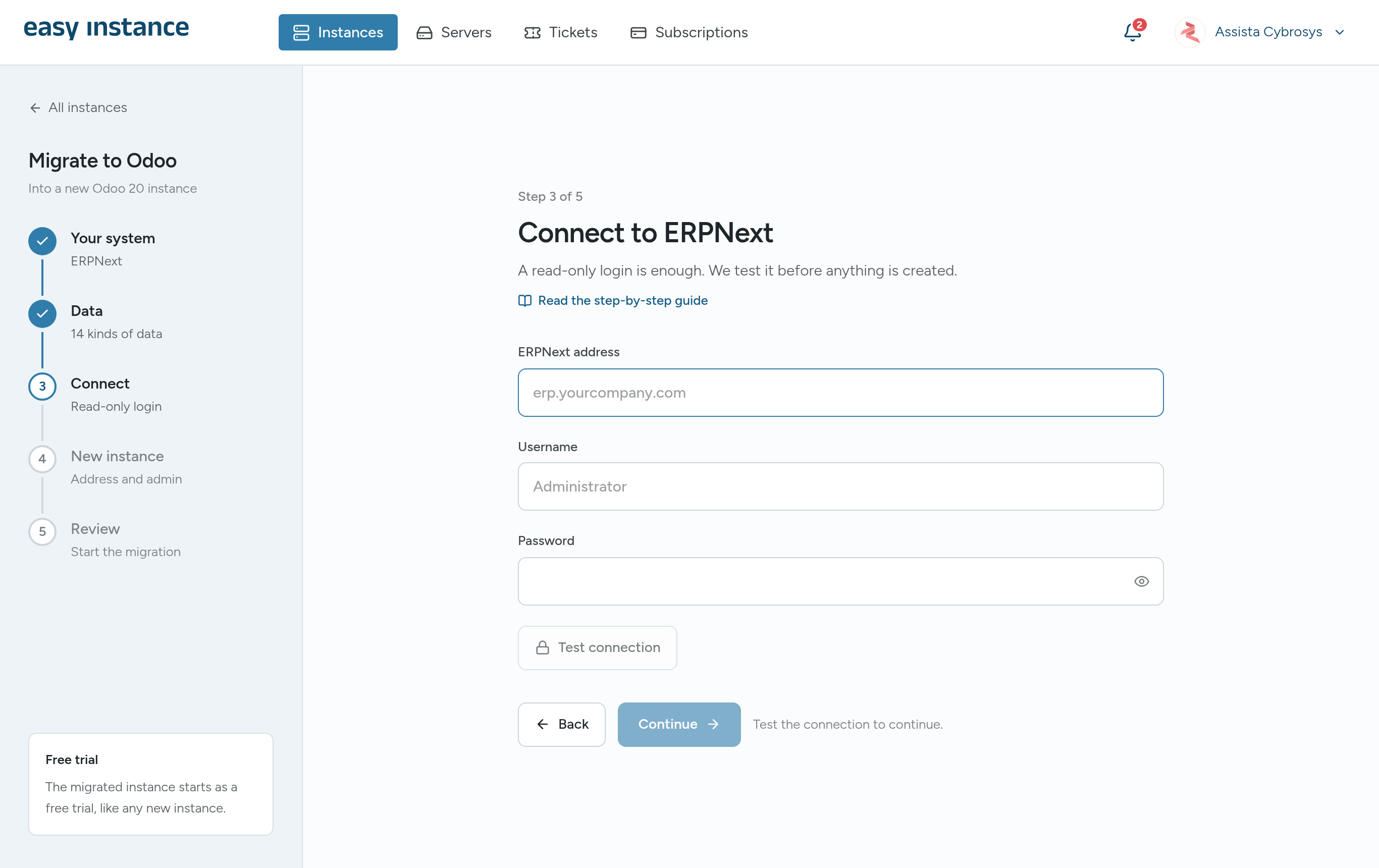
A read-only ERPNext login is enough.
- Enter the ERPNext address, for example
erp.yourcompany.com. - Enter the Username and Password.
- Select Test connection. You can continue once the test passes.
Zoho ERP
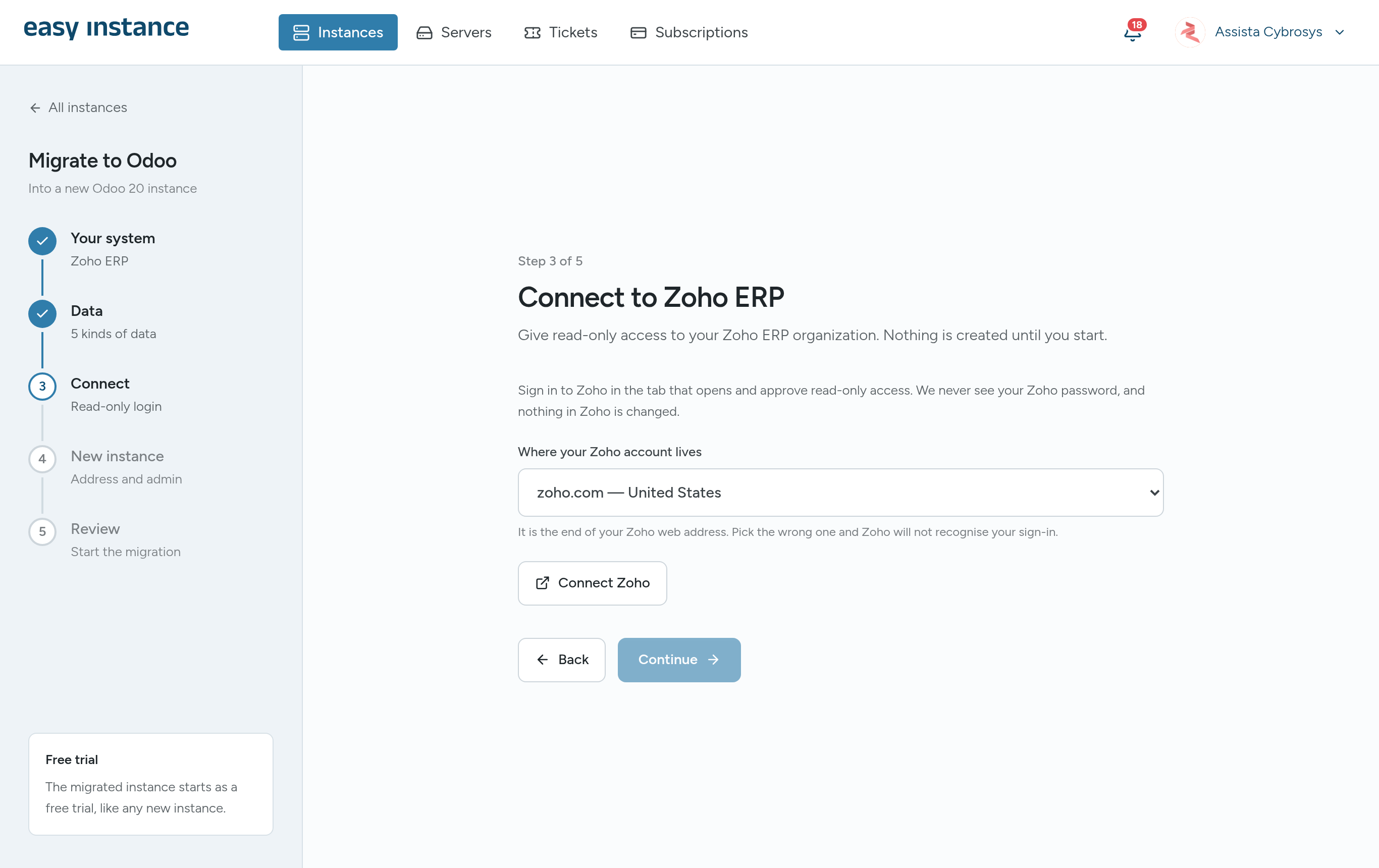
- Under Where your Zoho account lives, choose your Zoho region. It's the end of the web address you use for Zoho, for example
zoho.com(United States),zoho.eu(Europe) orzoho.in(India). If you pick the wrong one, Zoho won't recognize your account. - Select Connect Zoho.
- Sign in to Zoho in the tab that opens and approve read-only access.
- Back in Easy Instance, choose the organization to migrate and select Continue.
Easy Instance never sees your Zoho password, and nothing in Zoho is changed.
Sage Accounting
- Select Connect Sage.
- Sign in to Sage Accounting in the tab that opens and approve read-only access.
- Back in Easy Instance, choose the business to migrate and select Continue.
Easy Instance never sees your Sage password, and nothing in Sage is changed. For more detail, select Read the step-by-step guide in the wizard.
Step 4: New Instance
Choose the address and the admin login for your new Odoo instance.
- The instance name can be 3 to 57 lowercase letters, numbers or hyphens.
- The admin password needs at least 6 characters.
Step 5: Review
Check your choices and select Start migration.
Follow the Progress
While the migration runs, a banner on the Instances list shows it, for example Migrating into my-company. Select View to see each stage, such as creating your instance, copying your data and checking totals.
When it finishes, a totals table compares the numbers in your old system with the numbers in Odoo, so you can check that everything came across. Select Log to see the details.
If a migration stops:
- Select Retry to try again from where it stopped.
- For Sage, select Connect Sage again if your Sage access has expired.
- Select Cancel & remove to stop and remove the new instance.
If you're stuck, open a support ticket.
Next Steps
Step-by-step guides for each source system: