

Instance Overview and Actions
Open an instance from the Instances list to reach its console. The Overview tab is the first thing you see.
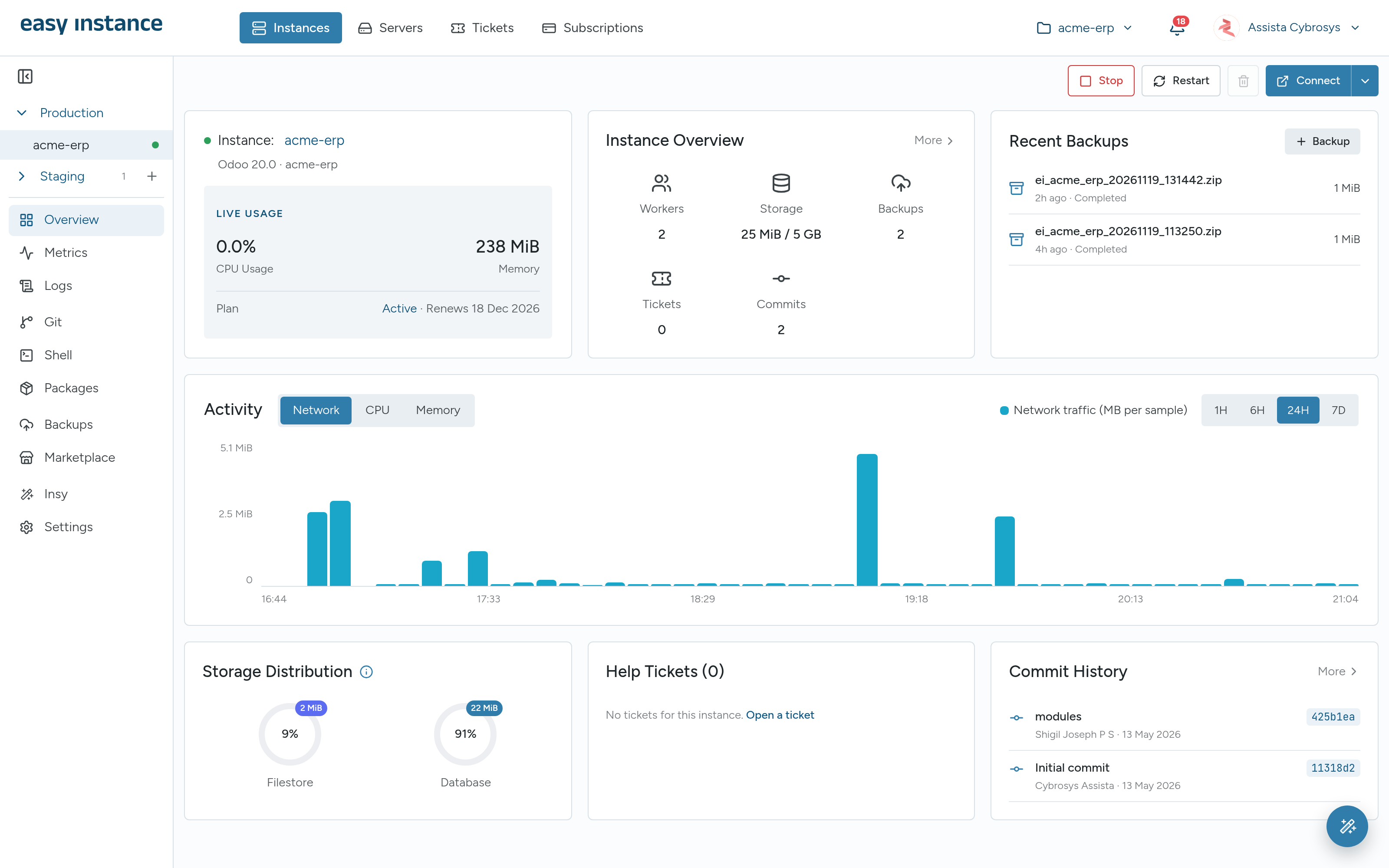
The Sidebar
- Production and Staging list the instance and its staging copies. The + next to Staging creates a new copy.
- The tabs below are grouped by job: Overview, Metrics, Logs; Git, Shell, Packages; Backups, Marketplace; Insy and Settings.
- The project picker in the top bar switches to another instance without going back to the list.
What the Overview Shows
- Instance: the name and Odoo version, LIVE USAGE (CPU and memory) and the Plan, for example Trial · Trial ends 29 Nov 2026.
- Instance Overview: workers, storage used, backups, tickets and commits. More opens Metrics.
- Recent Backups: the latest backups, with + Backup. See Backups.
- Activity: network, CPU or memory over 1H, 6H, 24H or 7D. Samples are taken every 5 minutes, so a new instance's chart fills in as it is used.
- Storage Distribution: how much space the filestore and the database use.
- Help Tickets: this instance's tickets, with Open a ticket.
- Commit History: recent commits from the linked repository. See Git and Custom Modules.
Open Odoo
Select Connect to sign in to Odoo straight away. If the instance has more than one internal user, choose who to sign in as. Use the arrow next to Connect and choose Open to open the instance's sign-in page instead.
Start, Stop and Restart
The buttons at the top right of the Overview control the instance. They are available to the owner and to collaborators with Admin access.
| Action | What happens |
|---|---|
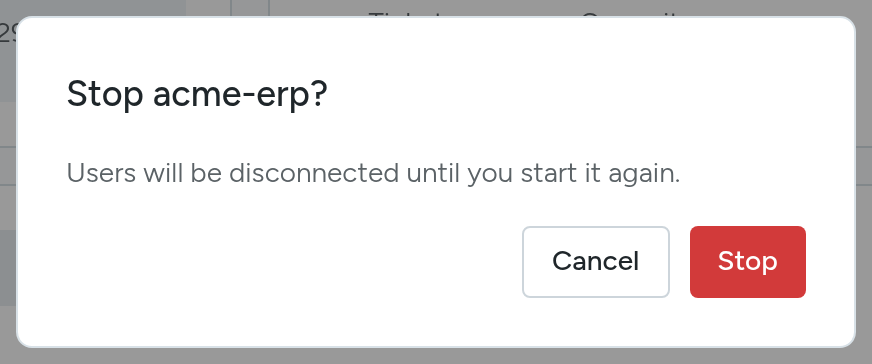
| Stop | Users are disconnected until you start it again. You are asked to confirm. |
| Start | Shown instead of Stop when the instance is stopped or in error. |
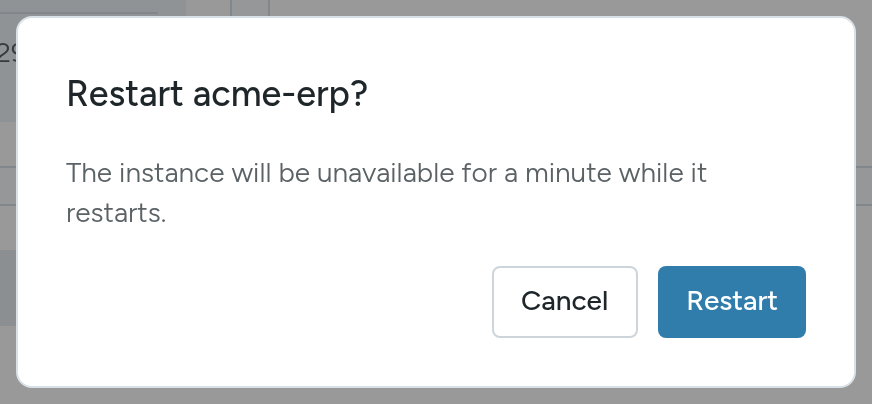
| Restart | The instance is unavailable for a minute while it restarts. You are asked to confirm. |
Delete an Instance
DANGER
Deleting permanently removes the instance and its data. It can't be undone.
- Stop the instance. The delete button stays disabled while it is running.
- Select the trash button.
- Type the instance name to confirm. Easy Instance saves a final backup, then removes the instance. This can take a few minutes.
Shared Instances
If someone added you as a collaborator, a banner shows who shared the instance and your access level: Admin, Developer or Viewer. Tabs your role cannot use say which access they need. See Collaborators and Access.