

Backups
Every instance gets an automatic daily backup on Easy Instance storage, from the day it is created. You can also send copies to storage you control, take a backup whenever you want, download backups and restore one.
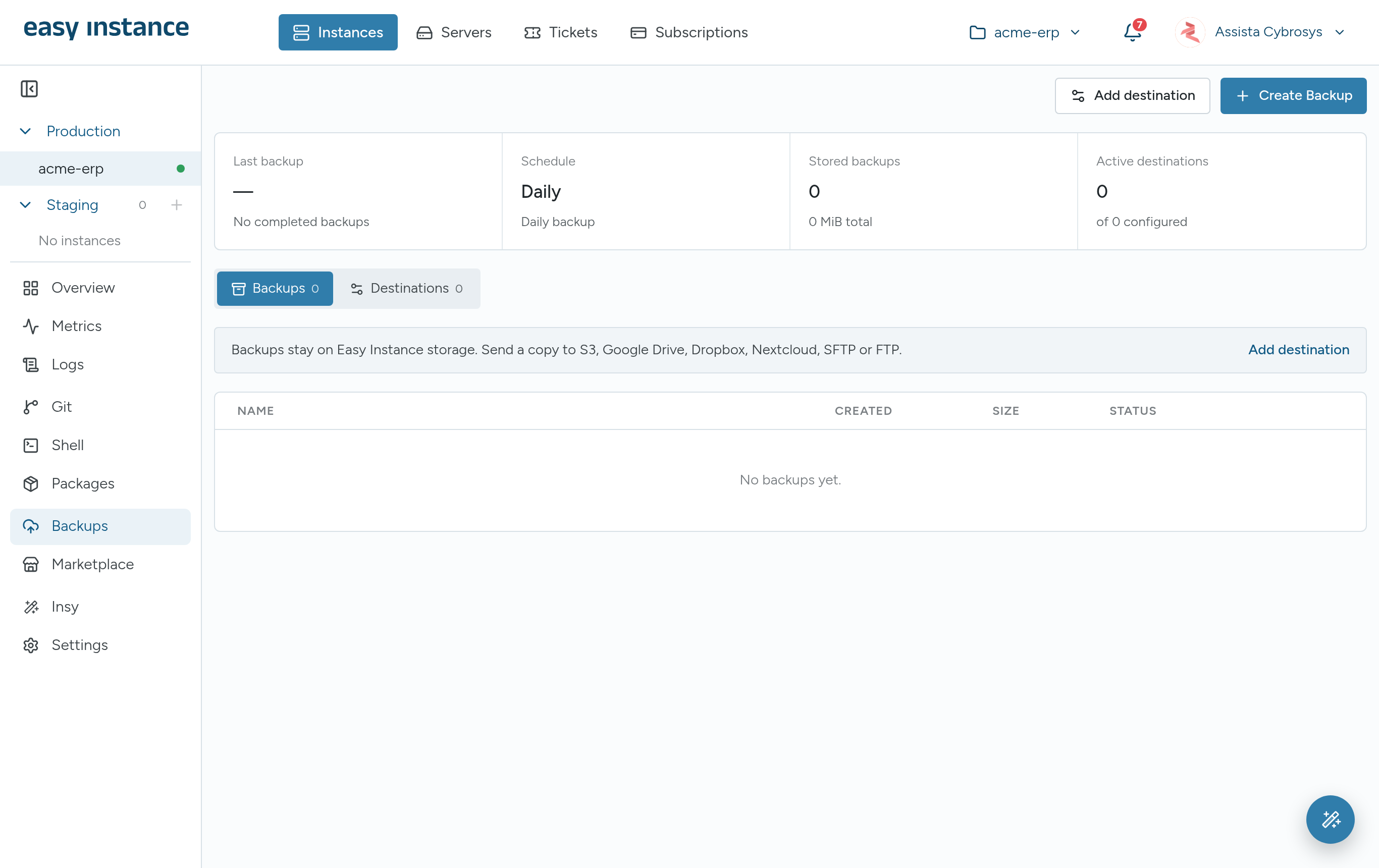
The top of the Backups tab shows the Last backup, the Schedule, the number of Stored backups and how many Active destinations you have. Switch between the Backups and Destinations views below.
INFO
On a new instance, the first daily backup is taken within 24 hours.
Add a Destination
A destination is storage of your own that receives copies of your backups on a schedule.
- Open the instance and select Backups.
- Select Add destination.
- Enter a Name, such as "Nightly backup", and choose the Destination type.
- Fill in the fields for that destination. Each guide below walks through one.
- Set the schedule and options (see below).
- For S3, FTP, SFTP and Nextcloud, select Test connection.
- Select Save destination.
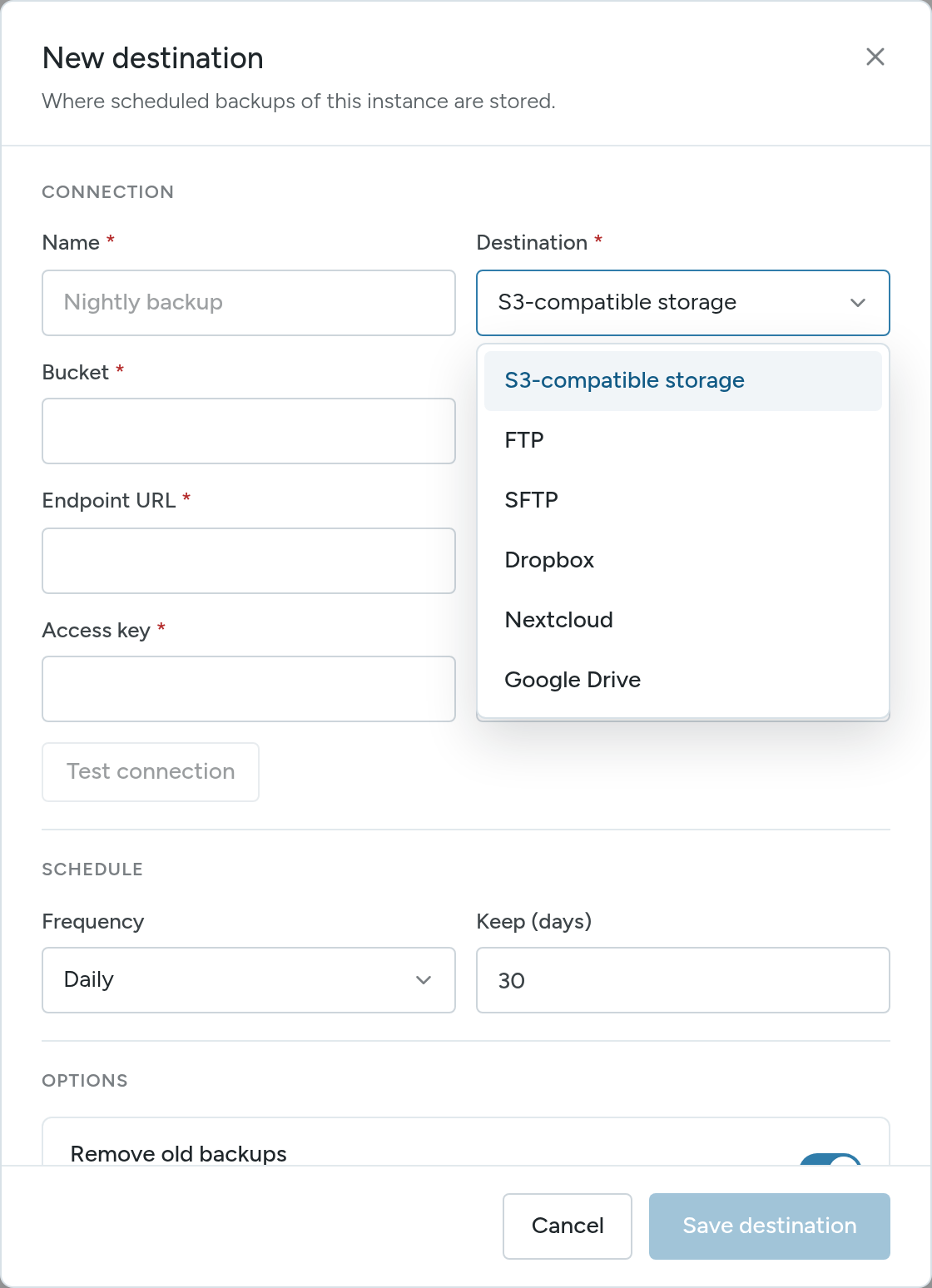
| Destination | Fields | Guide |
|---|---|---|
| S3-compatible storage | Bucket, Prefix (optional), Endpoint URL, Region, Access key, Secret key | Back Up to Amazon S3 |
| Google Drive | None: you allow access in Google | Back Up to Google Drive |
| Dropbox | Folder (optional): you allow access in Dropbox | Back Up to Dropbox |
| Nextcloud | Nextcloud URL, Username, Password, Folder | Back Up to Nextcloud |
| SFTP | Host, Port (22), Username, Password, Remote folder | Back Up to SFTP or FTP |
| FTP | Host, Port (21), Username, Password, Remote folder | Back Up to SFTP or FTP |
The destination type cannot be changed after you save. To change it, add a new destination.
Schedule and Options
- Frequency: Daily, Weekly or Monthly.
- Keep (days): how long backups are kept. The default is 30.
- Remove old backups: delete backups older than the keep period.
- Include filestore: zip the database with its attachments. Turn it off to back up the database only.
- Email me about backups: the instance owner gets an email when a backup succeeds or fails.
To pause a destination without deleting it, switch it off in the Destinations view.
Edit or Delete a Destination
In the Destinations view:
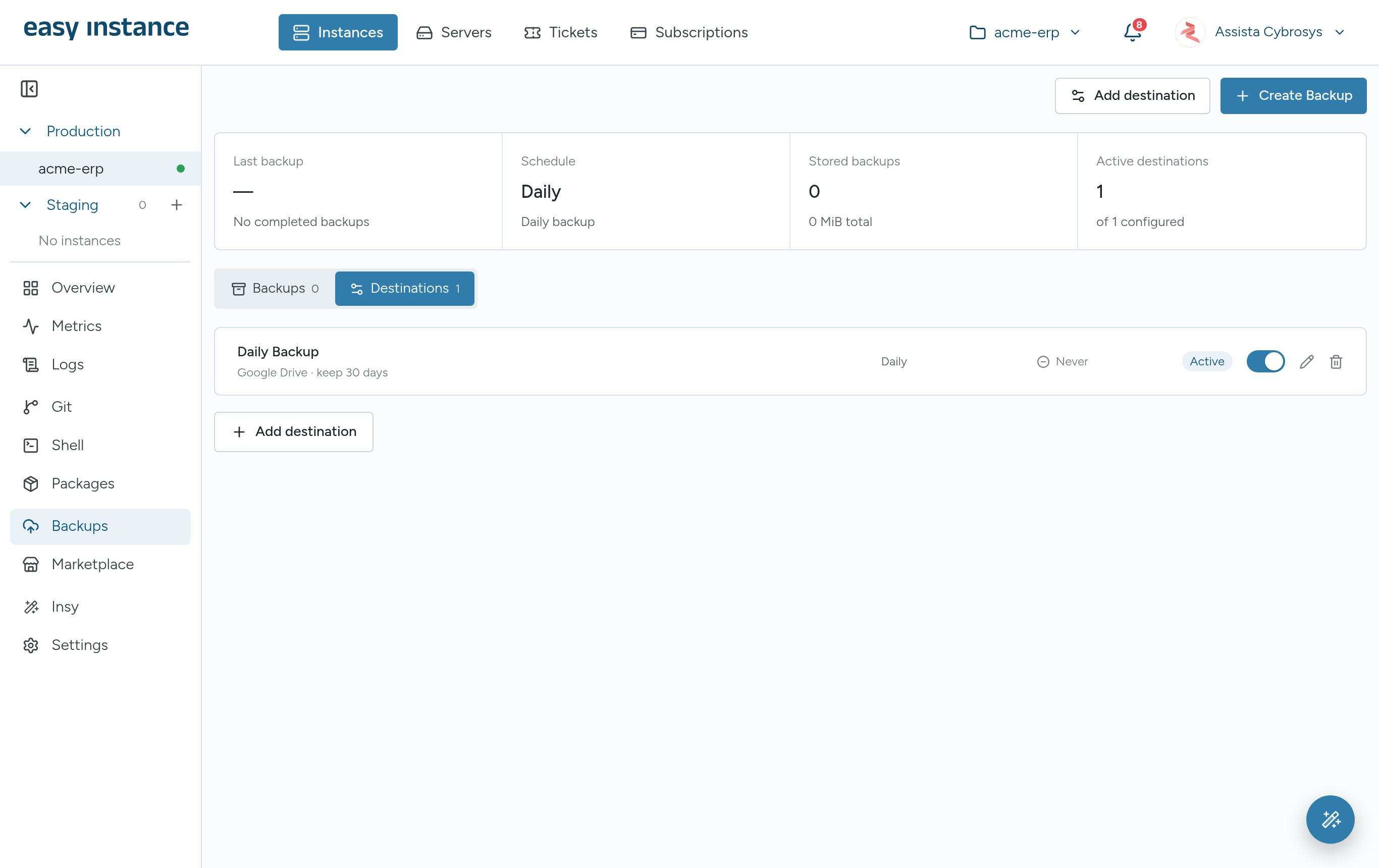
- Select the pencil button on a destination to change its name, connection details, schedule or options, then Save destination. The destination type can't be changed.
- Select the trash button to delete the destination. Backups already saved in that storage stay there.
Take a Backup Now
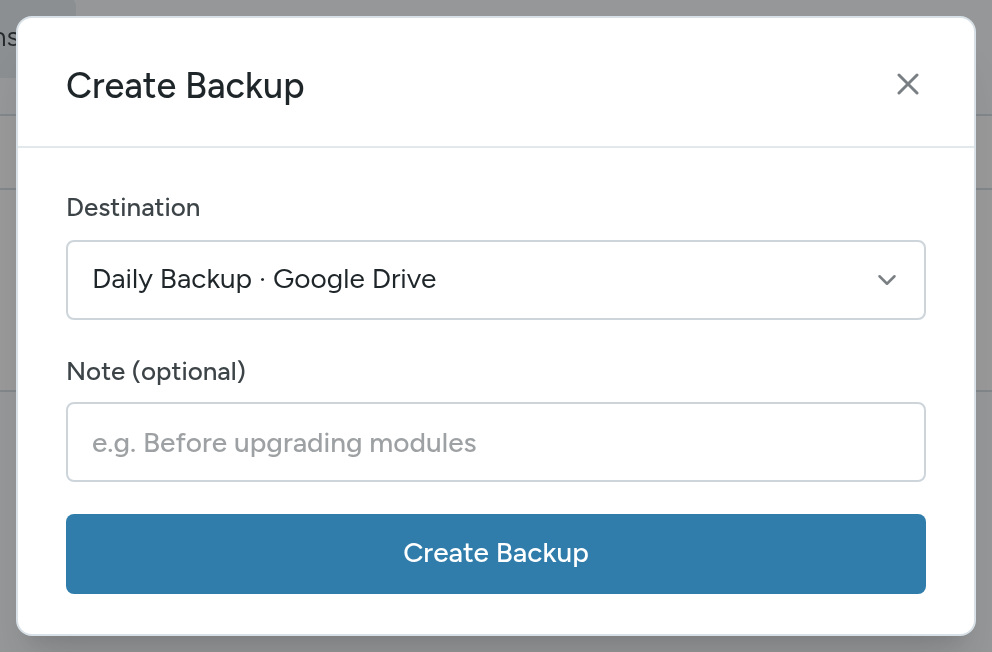
- Select Create Backup.
- Choose the Destination and, if you like, add a Note.
- Select Create Backup.
The backup appears in the list. When it is done, its status is Completed.
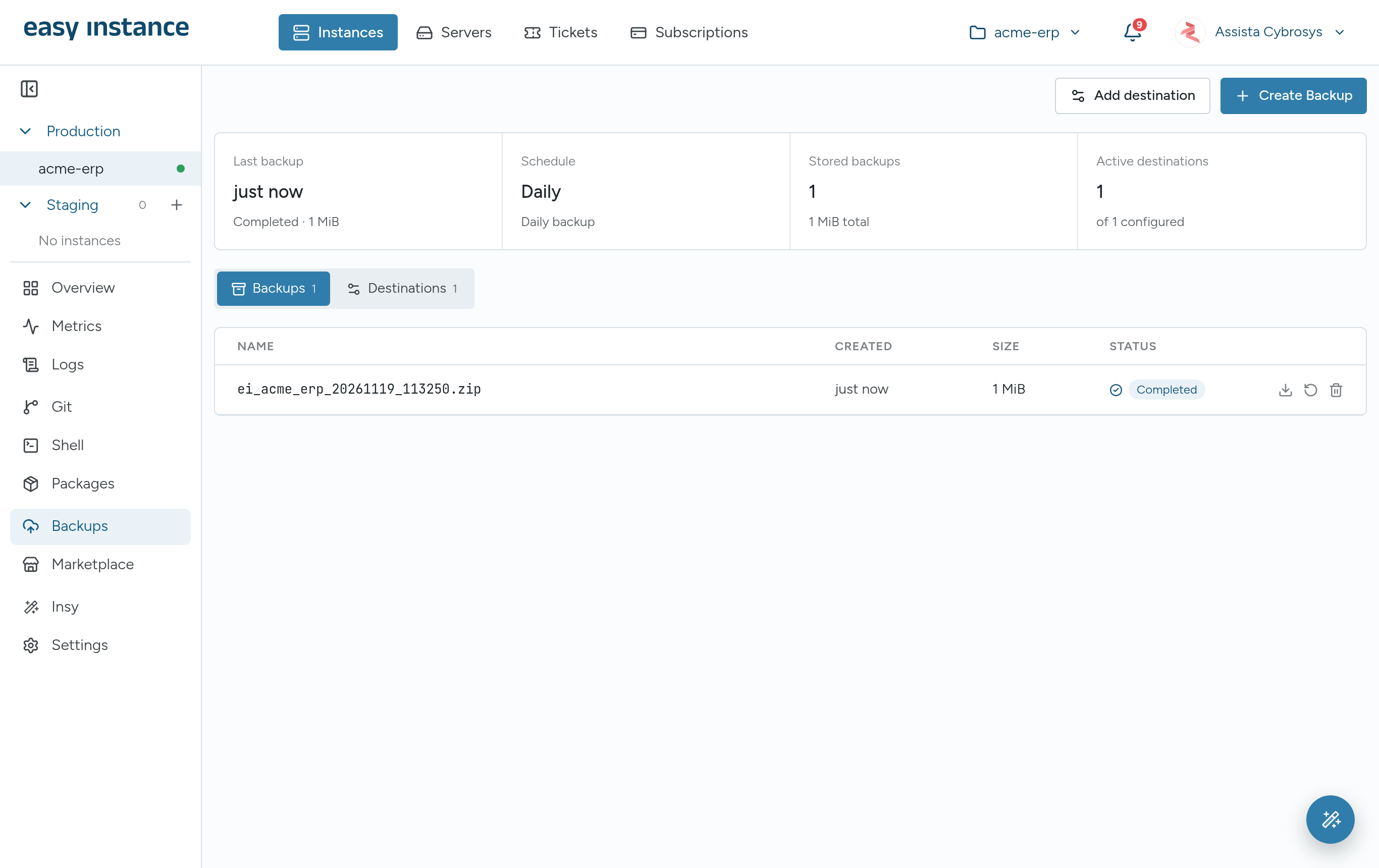
You need at least one destination of your own to take a backup yourself.
Download a Backup
Select Download on a completed backup. It is saved as a .zip file.
Delete a Backup
Select Delete on a backup's row and confirm.
Restore a Backup
DANGER
Restoring replaces the current database of the instance with the backup. This can't be undone. Download a fresh backup first if you may need the current data.
- In the Backups view, find the backup.
- Select Restore on its row and confirm.
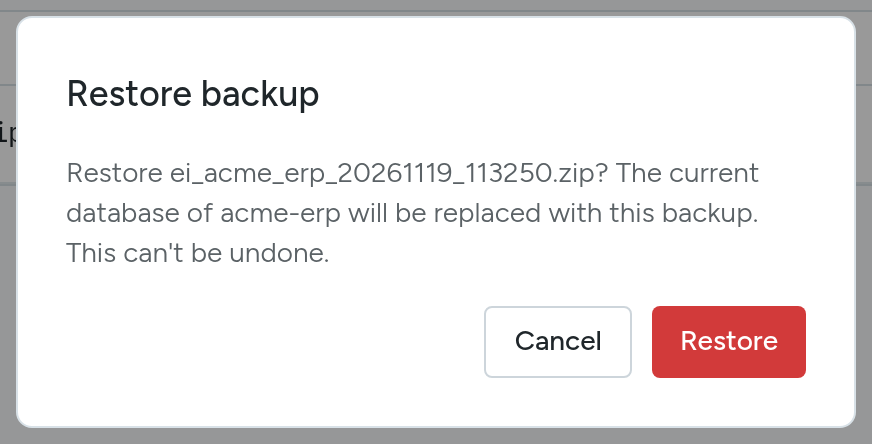
To test a backup without touching production, restore it on a staging copy.