

Collaborators and Access
Collaborators are the people who work on an instance with you. Adding someone gives them access to the linked GitHub repository and to the instance in the Easy Instance dashboard. This is how you share an instance with your team.
Before you start
You need a linked GitHub repository, and each person needs a GitHub account.
Roles
| Role | On GitHub | In the dashboard |
|---|---|---|
| Admin | Full control of the repository, including settings and access | Everything the owner can do with the instance |
| Developer | Push code; pushes to the tracked branch sync to the instance | Full Git access, everything else read-only |
| Viewer | Read and clone the repository | Read-only |
What Each Role Can Do
| Tab or action | Owner | Admin | Developer | Viewer |
|---|---|---|---|---|
| See Overview, Metrics and Logs | ✓ | ✓ | ✓ | ✓ |
| Start, stop, restart, delete, Connect | ✓ | ✓ | – | – |
| Git: link, sync, change branch | ✓ | ✓ | ✓ | view only |
| Invite and manage collaborators | ✓ | ✓ | up to Developer | – |
| Shell | ✓ | ✓ | – | – |
| Packages: install and remove | ✓ | ✓ | view only | view only |
| Marketplace: download, install, uninstall | ✓ | ✓ | view only | view only |
| Backups: create, restore, download, destinations | ✓ | ✓ | view only | view only |
| Insy | ✓ | ✓ | – | – |
| Settings (domains, Insy, report, SMTP) | ✓ | ✓ | – | – |
| Subscription and billing | ✓ | – | – | – |
A collaborator added on a production instance also gets access to its staging copies.
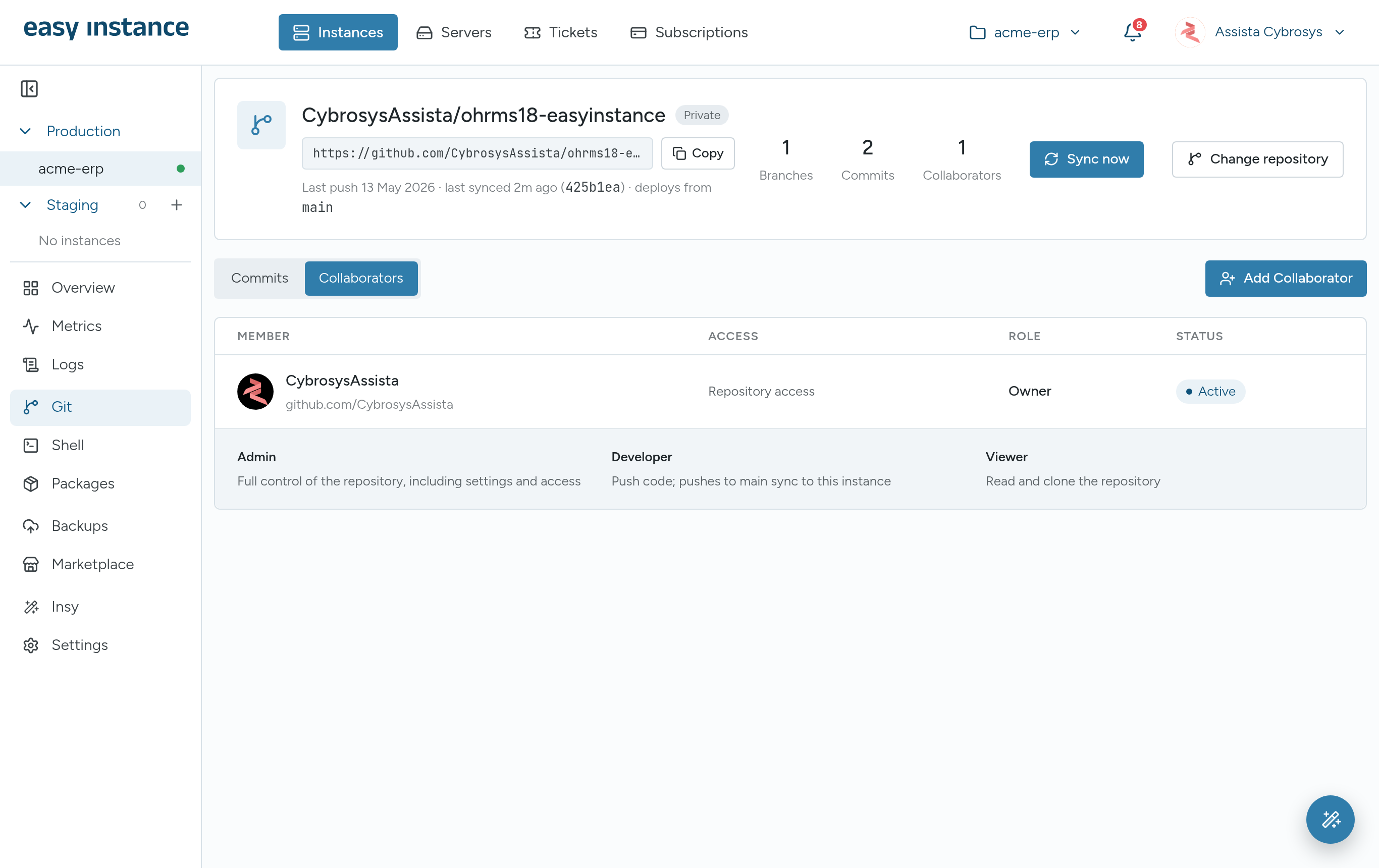
Invite a Collaborator
- Open the instance, select Git, then select Collaborators.
- Select Add Collaborator.
- Enter their GitHub username and choose a Role.
- Select Send invite.
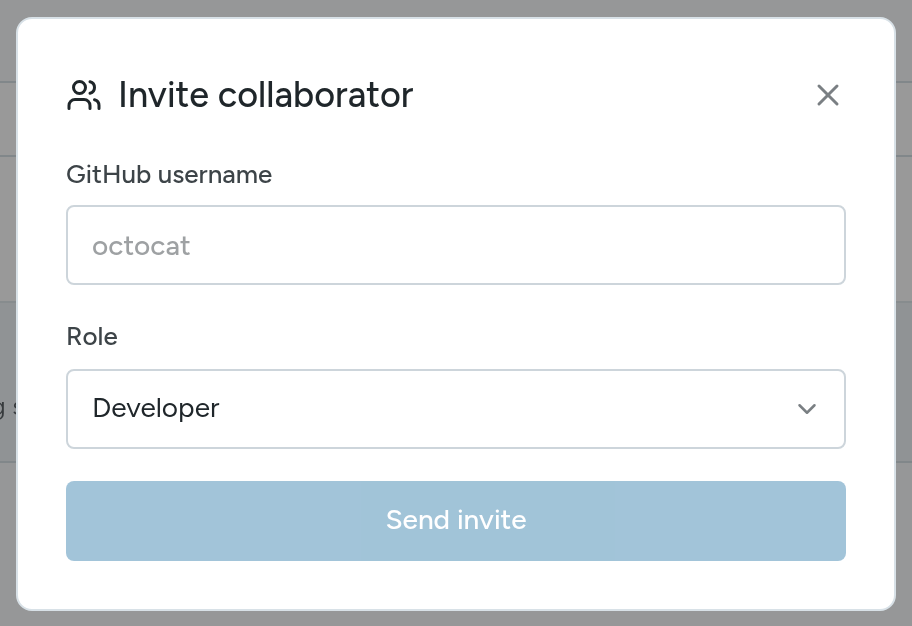
The person appears in the list with the status Pending until they accept the GitHub invitation, then Active.
How the collaborator gets in
To see the instance in Easy Instance, the collaborator signs in to Easy Instance with Continue with GitHub, using the GitHub account you invited, or with the email address that GitHub account shows publicly.
Owners and Admins can invite any role. Developers can invite others too, but only as Developer or Viewer.
Change or Remove Access
- Change a collaborator's role from the ROLE column.
- Remove a collaborator from their row and confirm. This changes access on GitHub straight away.
- To cancel an invitation that hasn't been accepted yet, select the trash button on its Pending row and confirm.
What a Collaborator Sees
When a collaborator opens a shared instance, a banner shows who shared it and their access level. Tabs their role cannot use say which access they need, for example that Shell needs Admin access.