

Back Up to Nextcloud
Send copies of your Odoo backups to your Nextcloud, the open-source file storage you can host yourself or get from a Nextcloud provider.
Before You Start
You need a Nextcloud account. If you don't have one, sign up at nextcloud.com/sign-up and pick a provider.
Step 1: Find Your Nextcloud Address and Username
- Sign in to Nextcloud.
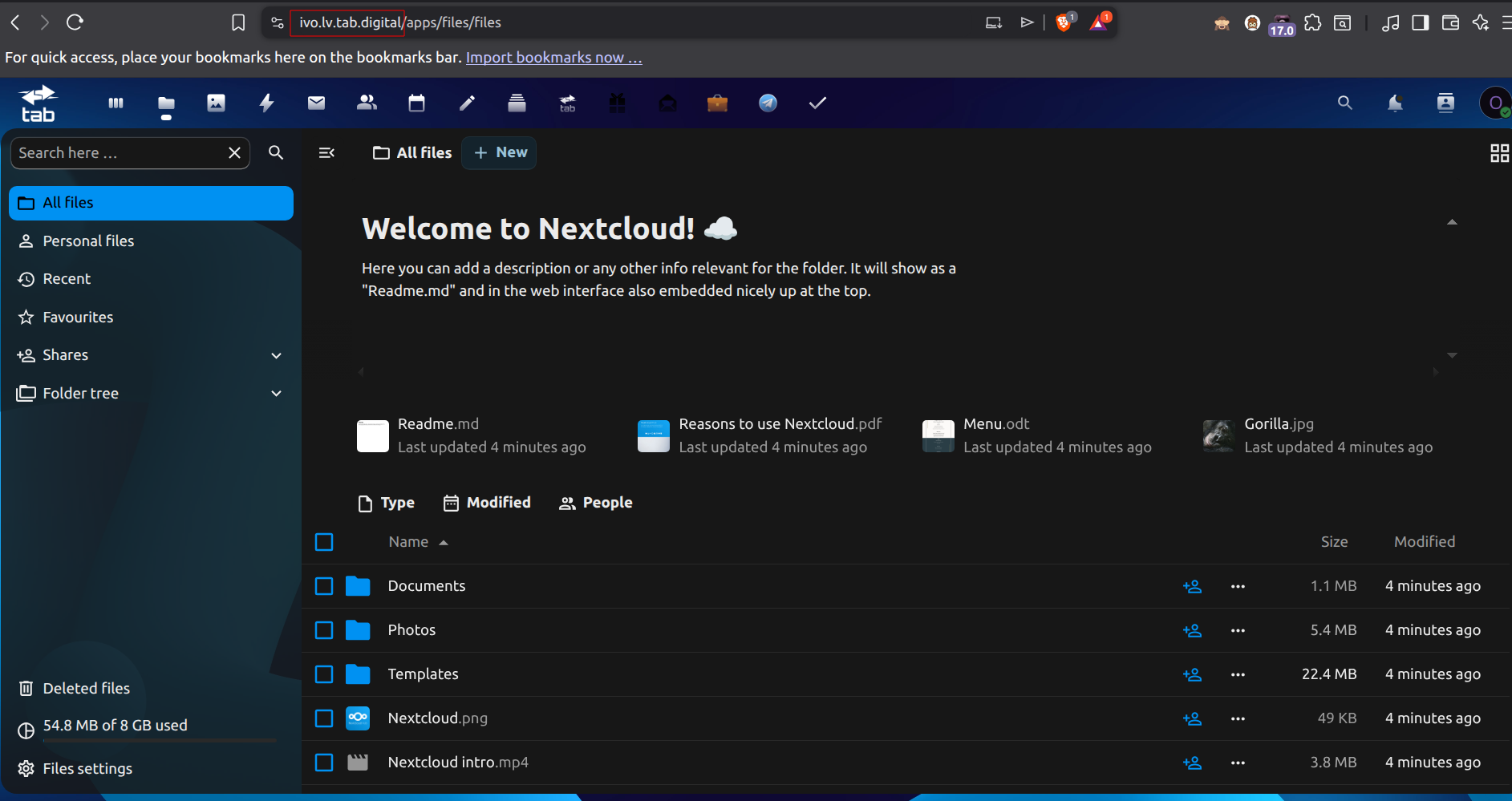
- Copy the address from your browser's address bar, up to the first
/after the domain. For example, if the address ishttps://demo.nextcloud.com/apps/files, copyhttps://demo.nextcloud.com. - Find your username: open your profile picture menu, then Settings. Your username (account ID) is shown there. It may be different from your email address.
Two-step verification
If your Nextcloud account uses two-step verification, create an app password under Settings, then Security, and use it instead of your normal password.
Step 2: Add the Destination in Easy Instance
- Open the instance and select Backups.
- Select Add destination.
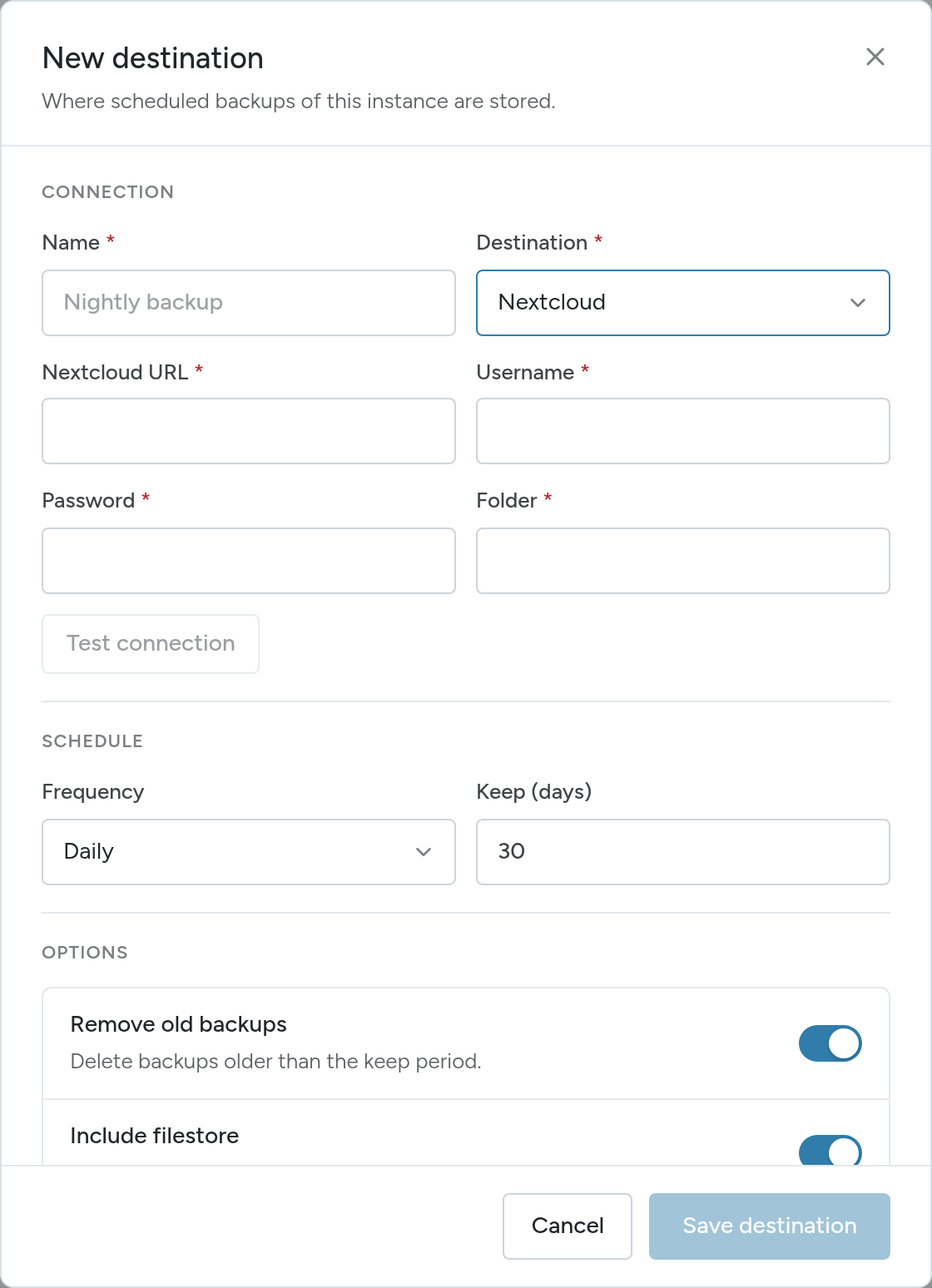
- Enter a Name and choose Nextcloud as the Destination.
- Fill in the connection:
- Nextcloud URL: the full address from step 1, including
https://. - Username: your Nextcloud username from step 1.
- Password: your Nextcloud password, or the app password.
- Folder: the folder for the backups, for example
Odoo Backups.
- Nextcloud URL: the full address from step 1, including
- Select Test connection.
- Set the Frequency and Keep (days), and the options. See Schedule and Options.
- Select Save destination.
INFO
If the connection test fails, check the URL (it must start with https://), your username and your password.
Step 3: Check It Works
Select Create Backup, choose the Nextcloud destination and confirm. When the backup completes, open the folder in Nextcloud and check that the backup file is there.