

Insy AI Assistant
Insy answers questions about your Odoo data in plain language. Ask something like "show me unpaid invoices this month" and get a table or chart back, then pin it to a dashboard, turn it into a report, or email it. Insy is available on every instance at no extra charge from Easy Instance; your AI provider bills you for what you use with your own key.
Insy is in the instance's Insy tab, and in the Ask Insy button at the bottom right of the dashboard. The Insy tab is available to the instance owner and to collaborators with Admin access.
Turn Insy On
Insy needs an API key from an AI provider. An API key is a secret code from the provider that lets Insy use their AI. You create it in your account with that provider, and they bill you directly for what you use.
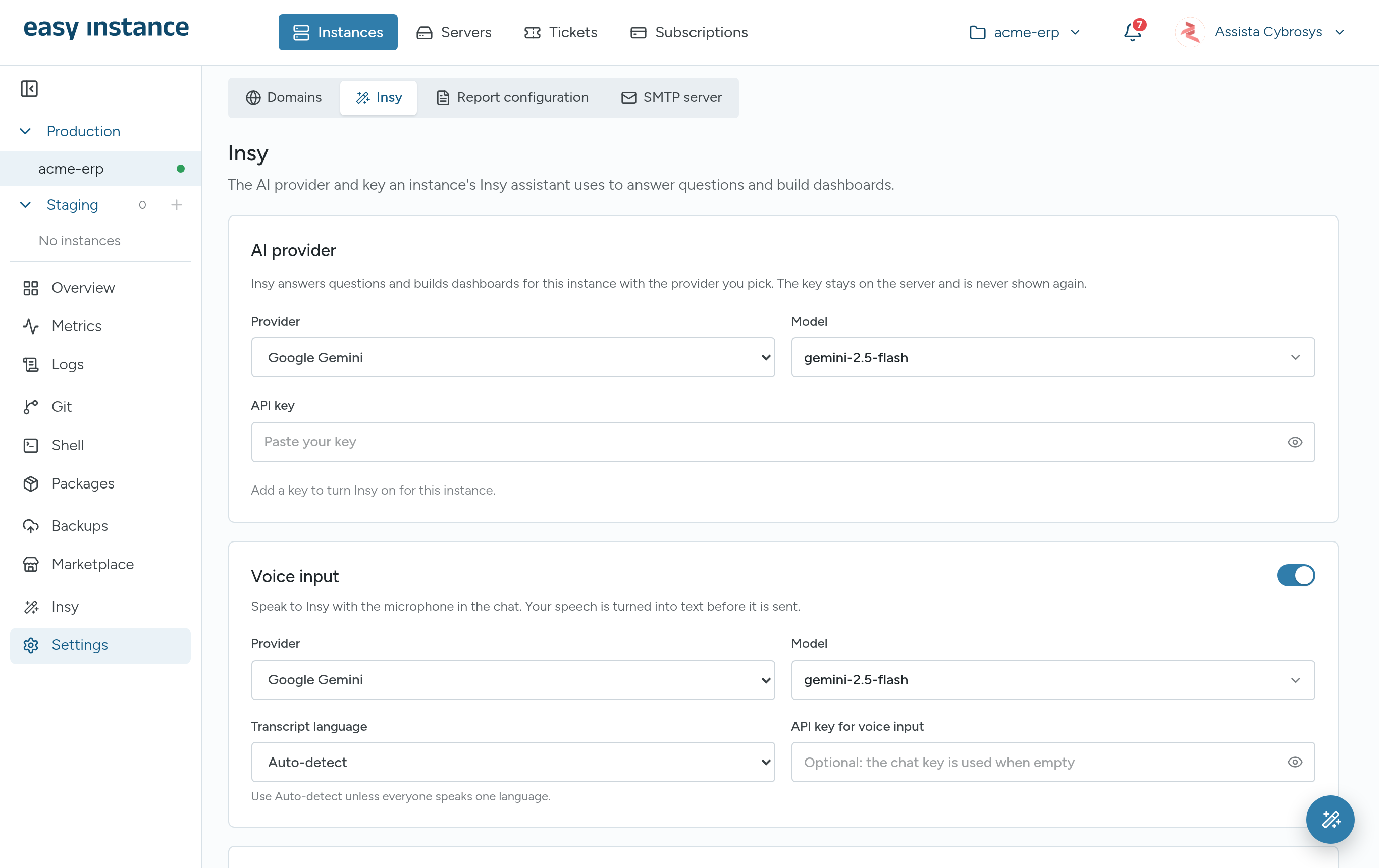
- Open the instance and select Settings, then Insy.
- Under AI provider, choose the Provider: Google Gemini, OpenAI or OpenRouter.
- Choose a Model.
- Paste your API key. The key stays on the server and is never shown again.
- Select Save changes.
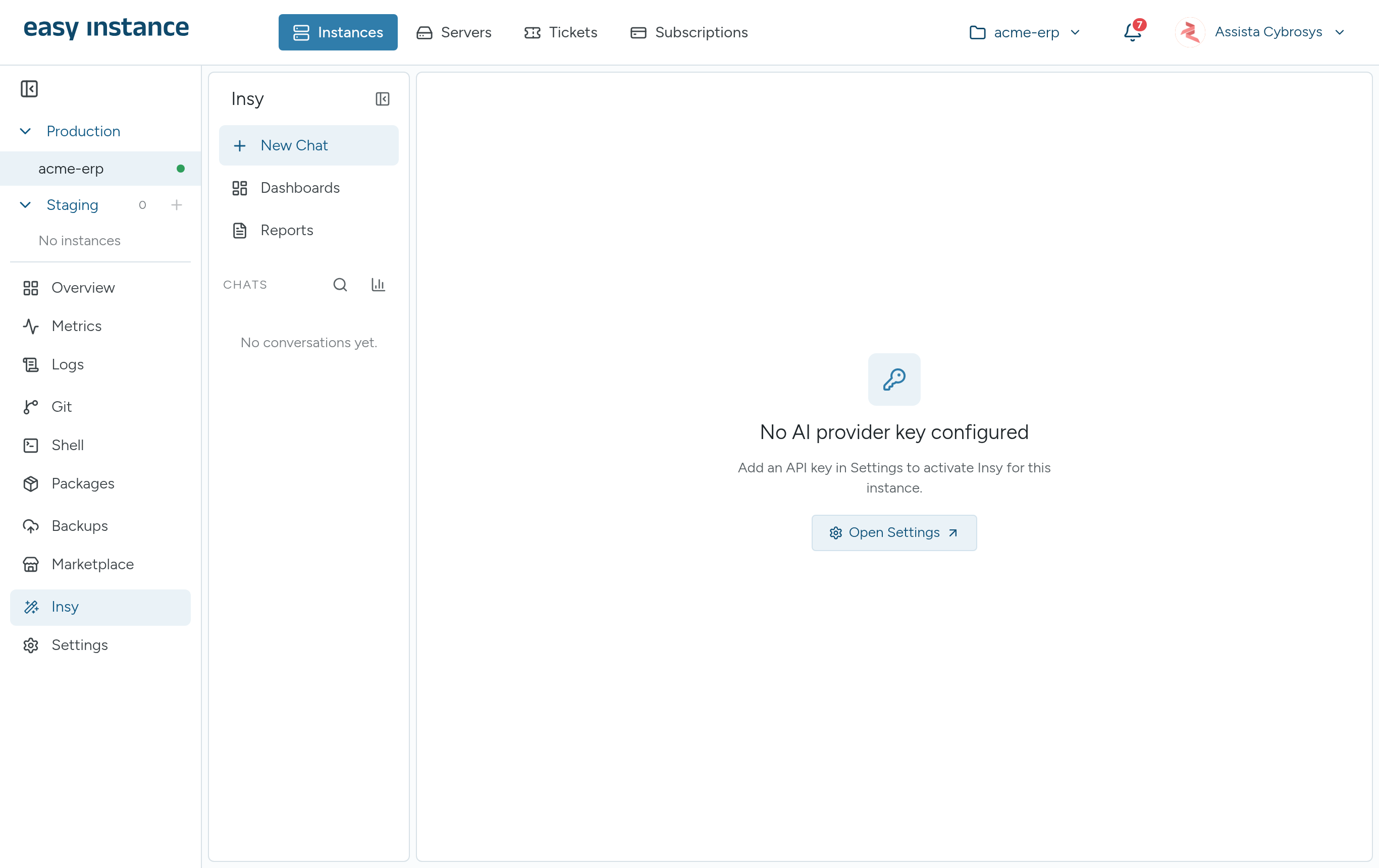
Until a key is added, the Insy tab shows No AI provider key configured, with Open Settings.
Chat
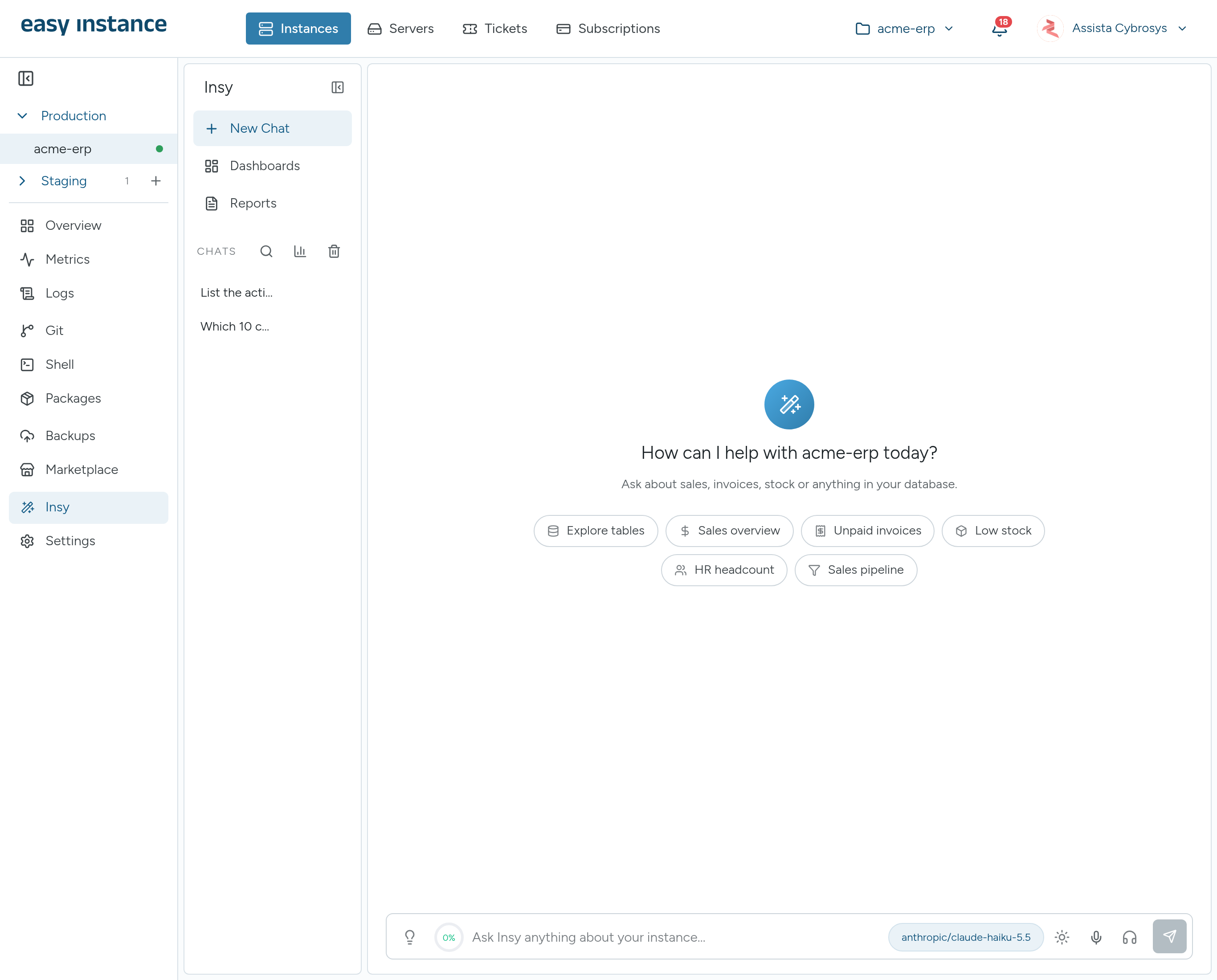
- Open the instance and select Insy, then New Chat.
- Type your question in Ask Insy anything about your instance..., or start from one of the suggestions, such as a sales overview, unpaid invoices, low stock, HR headcount or the sales pipeline.
- Read the answer. Each answer can be:
- Pinned to a dashboard.
- Sent by email, through the instance's outgoing mail server.
- Exported as Markdown, plain text or JSON.
- Retried, or edited and asked again.
- Charts can switch between bar, line, pie and doughnut, add a trend line, moving average or forecast, and be exported as PNG or CSV.
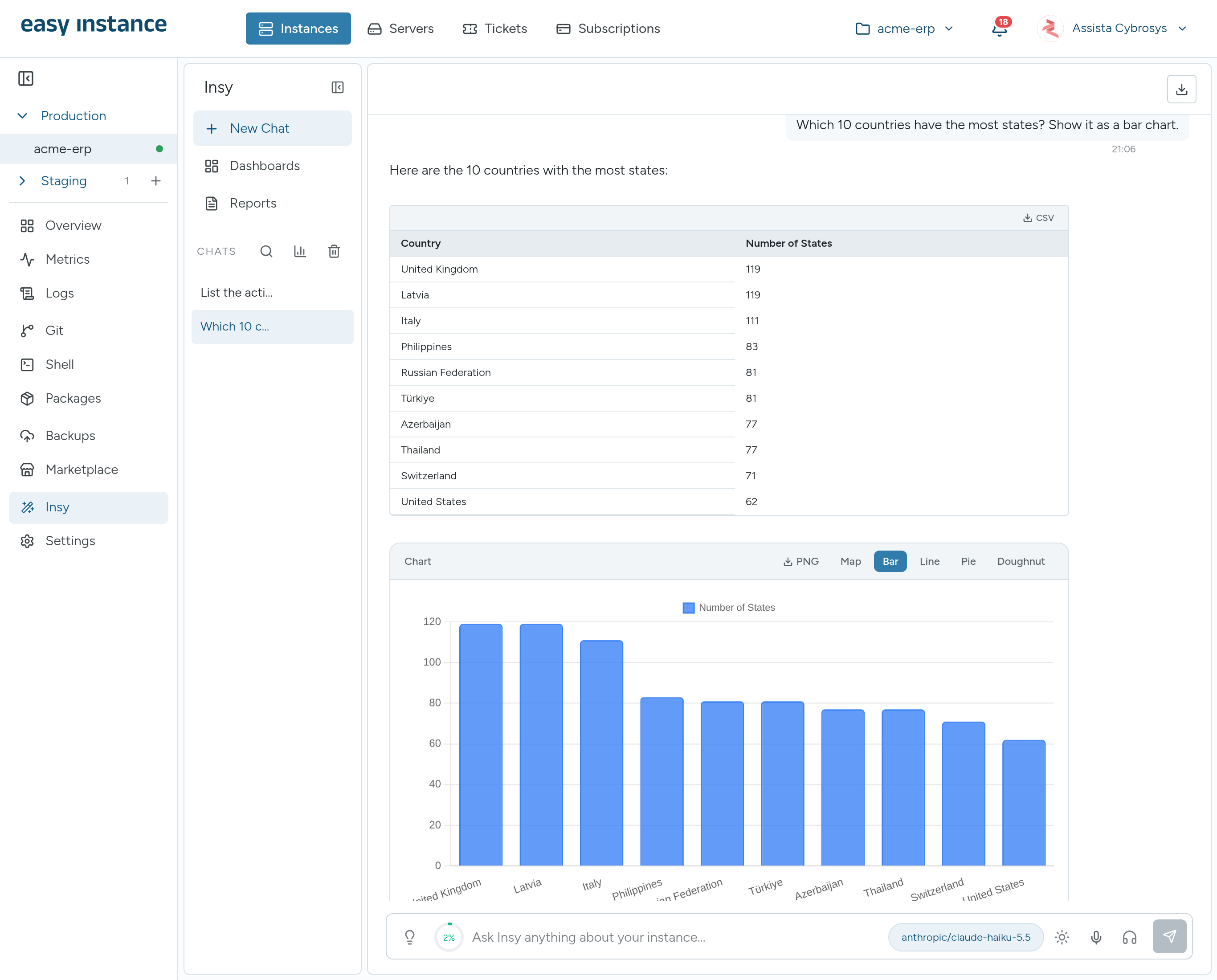
Insy remembers the conversation, so you can ask follow-up questions. Suggested follow-ups appear under an answer; select one to ask it.
Besides tables and charts, an answer can show a map, a calendar or an activity heatmap, depending on the data.
Get More from the Chat
- Explore tables lists the data in your instance, so you know what you can ask about.
- Query templates offers ready-made questions by area: Sales, CRM, Inventory, Accounting, HR and General. Under Saved views you can save your own questions to reuse. Saved views are kept in this browser.
- Switch model changes the AI model for the chat without going to Settings.
- Search in conversation finds text in the current chat.
| Shortcut | What it does |
|---|---|
| Ctrl+K (Cmd+K on Mac) | Start a new chat |
| Ctrl+F (Cmd+F) | Search in the conversation |
| Ctrl+B (Cmd+B) | Show or hide the chat history |
| Esc | Close search or the open panel |
Your Chats
Your chats are listed on the left. You can search them, pin a chat to keep it at the top, rename it, select several to delete, or Clear all.
Read-only
Insy only reads your database. It does not create, change or delete records.
Daily Briefing
Select Daily Briefing in the chat for a summary of your business. You can change the question it answers in Settings, then Insy, under Daily briefing.
Dashboards
- Select Dashboards.
- Describe the dashboard you want and select Generate.
- Drag widgets to reorder them. Use Refresh all to update them and Export PDF to share the dashboard.
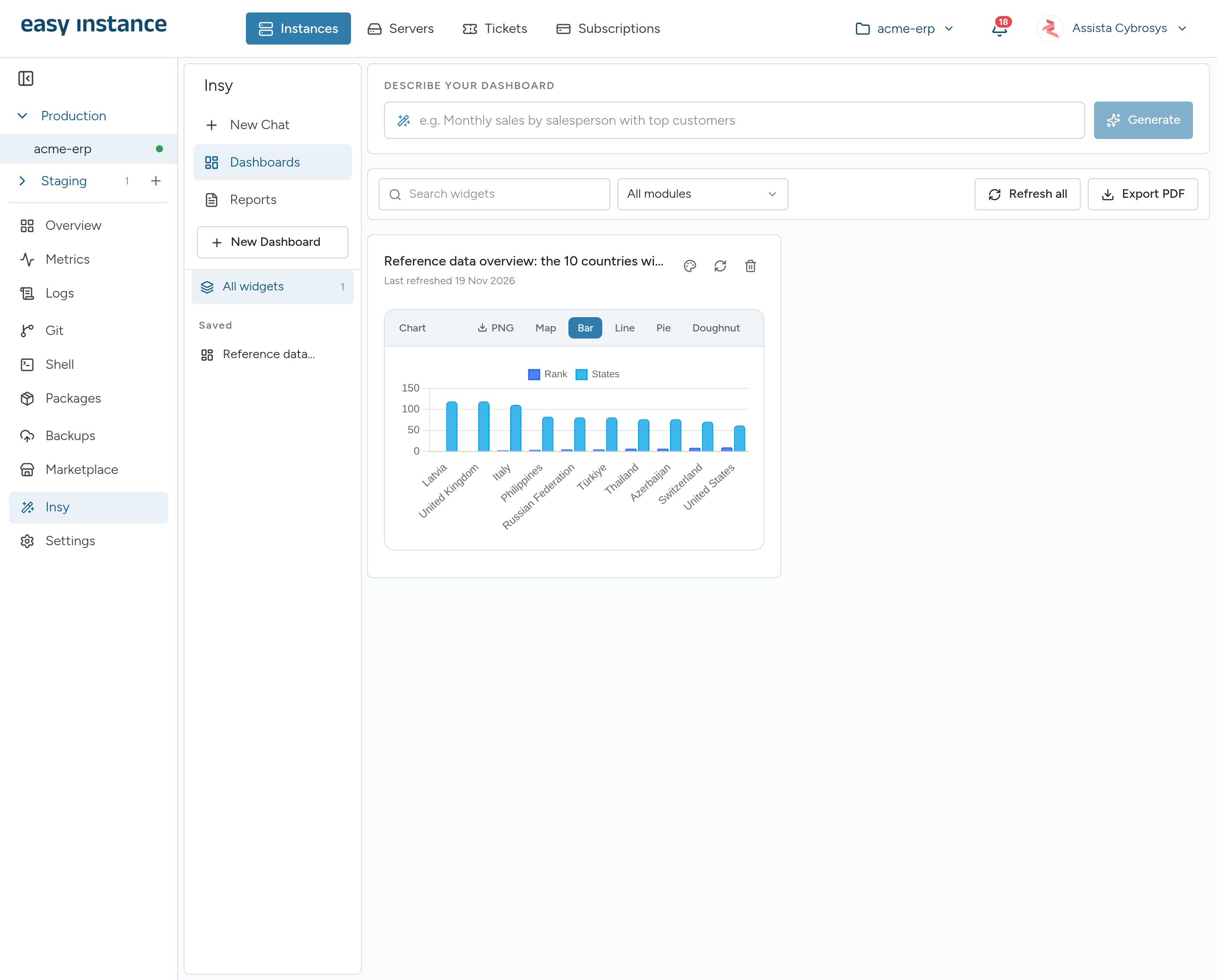
You can also add any chat answer to a dashboard with Pin to Dashboard.
More dashboard tools:
- Search widgets and Filter modules to find a widget on a large dashboard.
- Color theme changes the chart colors.
- Each widget has Refresh now and Delete widget.
- After a refresh, Insy can tell you what changed since the last refresh.
- Your saved dashboards are listed on the left, where you can also delete them.
Reports
- Select Reports.
- Describe the report you want, or Start from a template.
- Select Generate Report. It can take up to a minute.
- Print the report, save it as a PDF, or download the data as CSV. Regenerate builds it again.
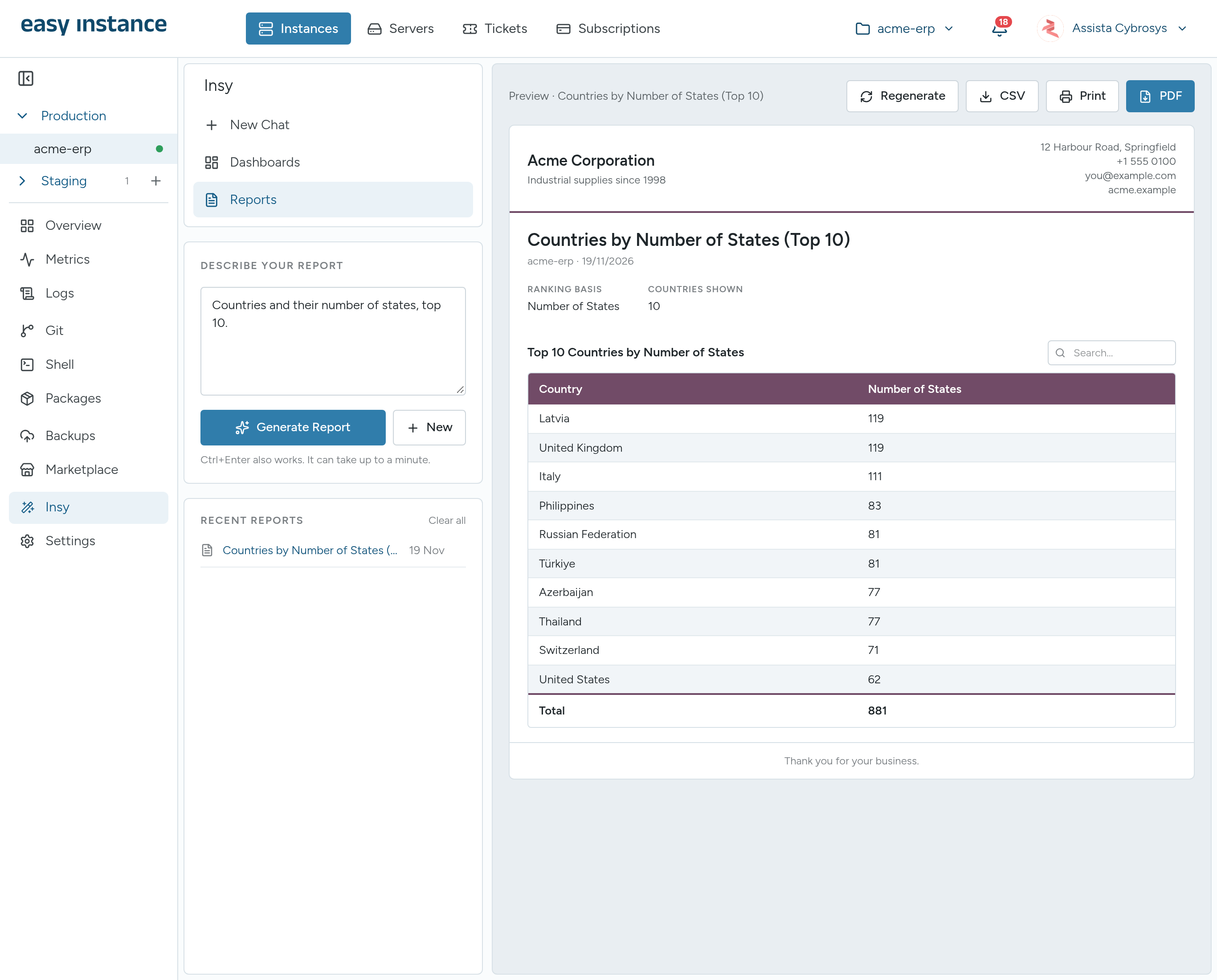
Reports use your letterhead from Report Configuration. If the company details are missing, Insy asks you to add them first, or you can select Generate anyway for a report without a header. Generated reports are listed under RECENT REPORTS.
Save reports you want to keep
Reports are kept in this browser only. To keep a report or share it, save it as a PDF or CSV.
Use Search reports… to find one, delete a report from its row, or Clear all. Tables in a report preview can be sorted and searched. Press Ctrl+Enter in the description box to generate.
Voice
Under Settings, then Insy, you can also set up voice:
- Voice input: speak your question with the microphone. Choose the provider (Google Gemini or OpenRouter), the model and the Transcript language (Auto-detect, English, Arabic, French, German, Spanish or Hindi). Voice input uses the chat key unless you add a separate one.
- Voice output: Insy reads its replies aloud, from the speaker button on a reply or automatically. Choose the voice and speed.
- Read replies aloud automatically and Voice conversation, which shows a hands-free conversation button in the chat.
Token Usage
The AI provider charges by tokens, roughly pieces of words. Select Token usage in the chat to see how many tokens you've used: in total, for questions versus answers, over the last 7 days, by model, and for voice.
When a conversation gets long, Insy sends only the latest messages as context and offers Start fresh. Start a New Chat to continue with a clean slate.
Ask Insy from Anywhere
The Ask Insy button floats at the bottom right of the dashboard, so you can ask a quick question without opening the Insy tab. It works for running instances you own, and is hidden on the Instances list, on Tickets and inside the Insy tab itself.
- Type / to pick a quick question: Sales This Month, Unpaid Invoices, Low Stock, Top Customers or Database Health.
- Drag the button to move it. Use Lock position to keep it in place, or Unlock position to move it again.
- Open in Insy continues the conversation in the Insy tab. Copy last answer and Clear chat are in the same panel.